
One portrait, several camera positions
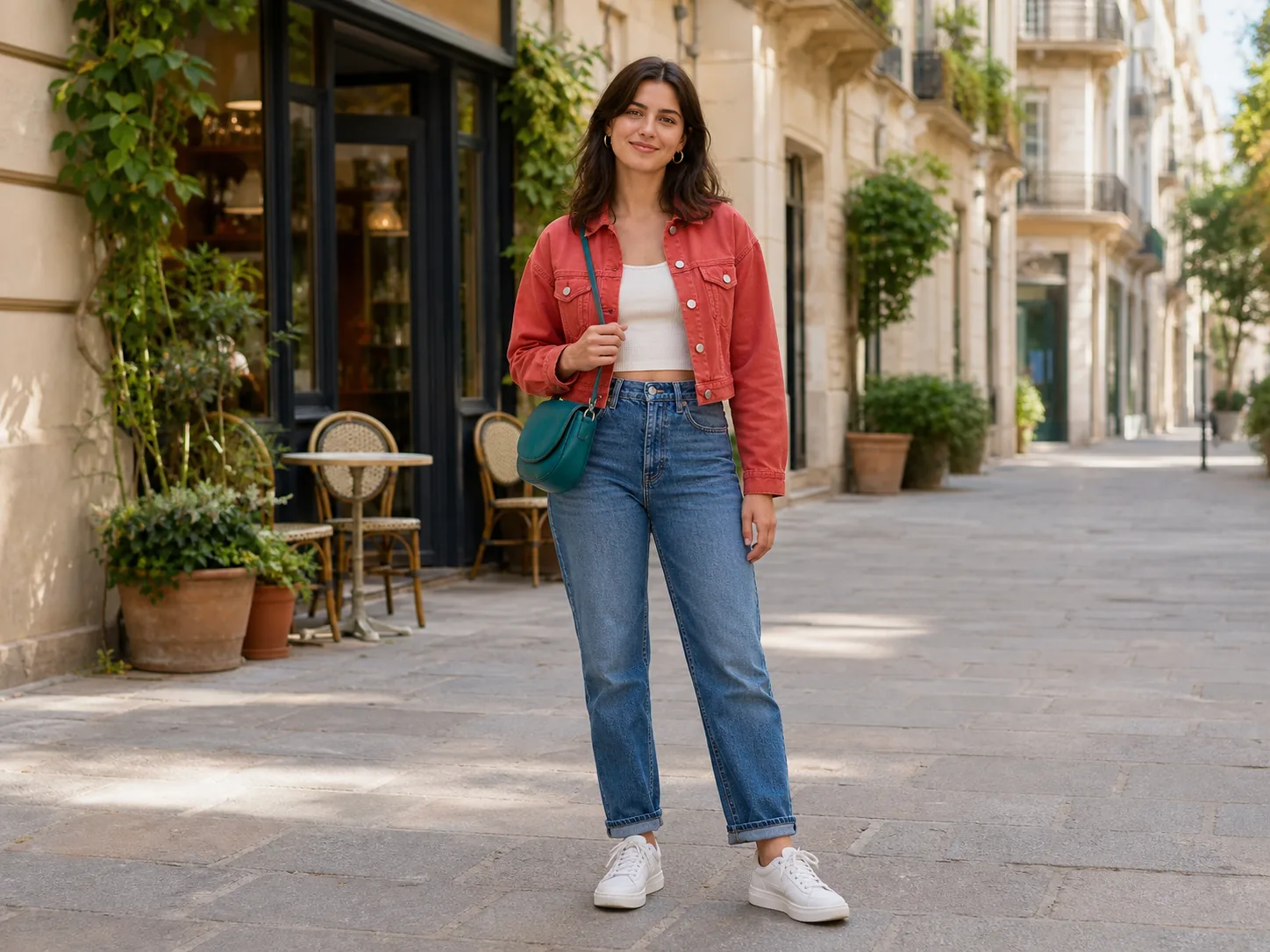
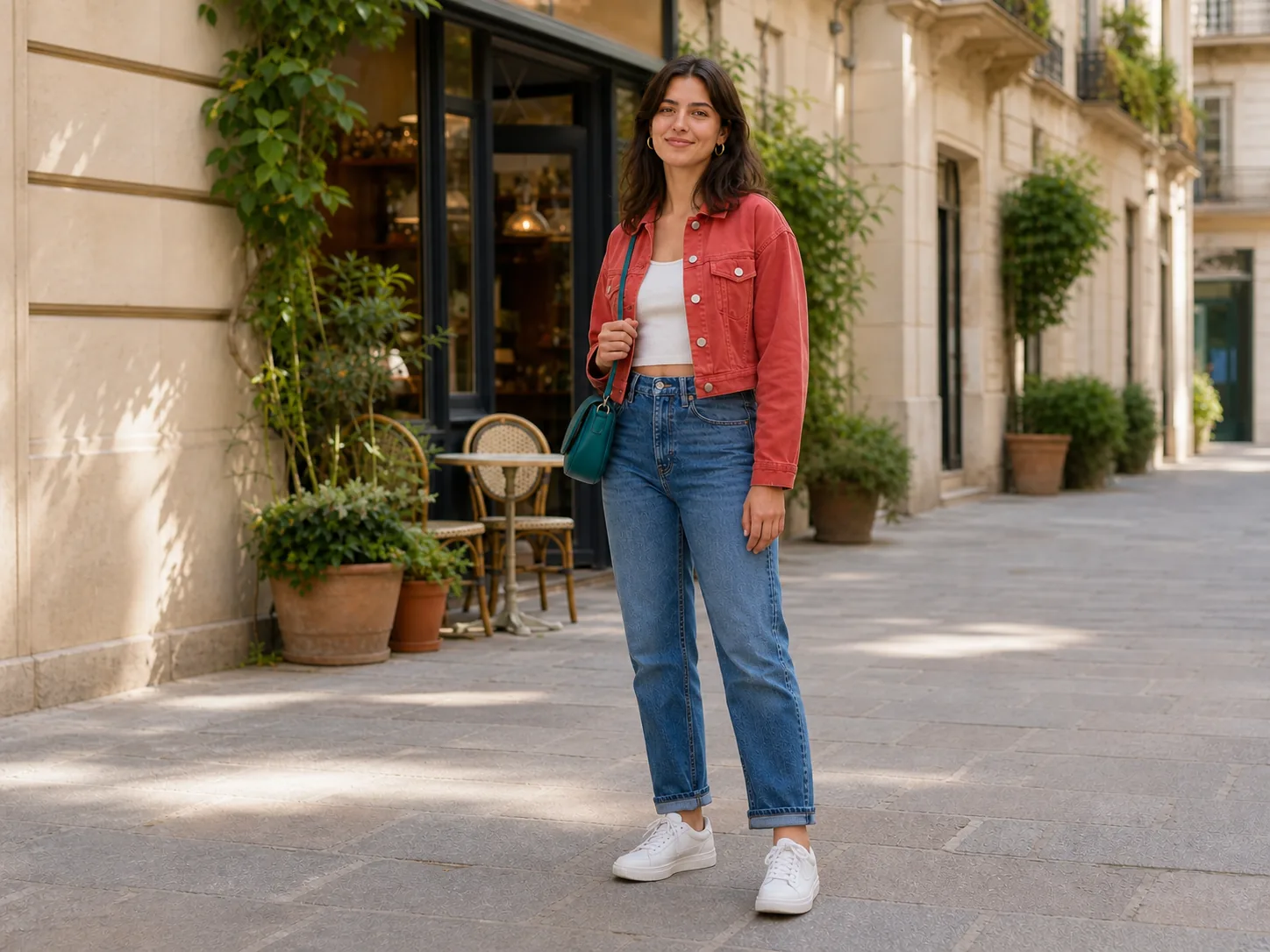
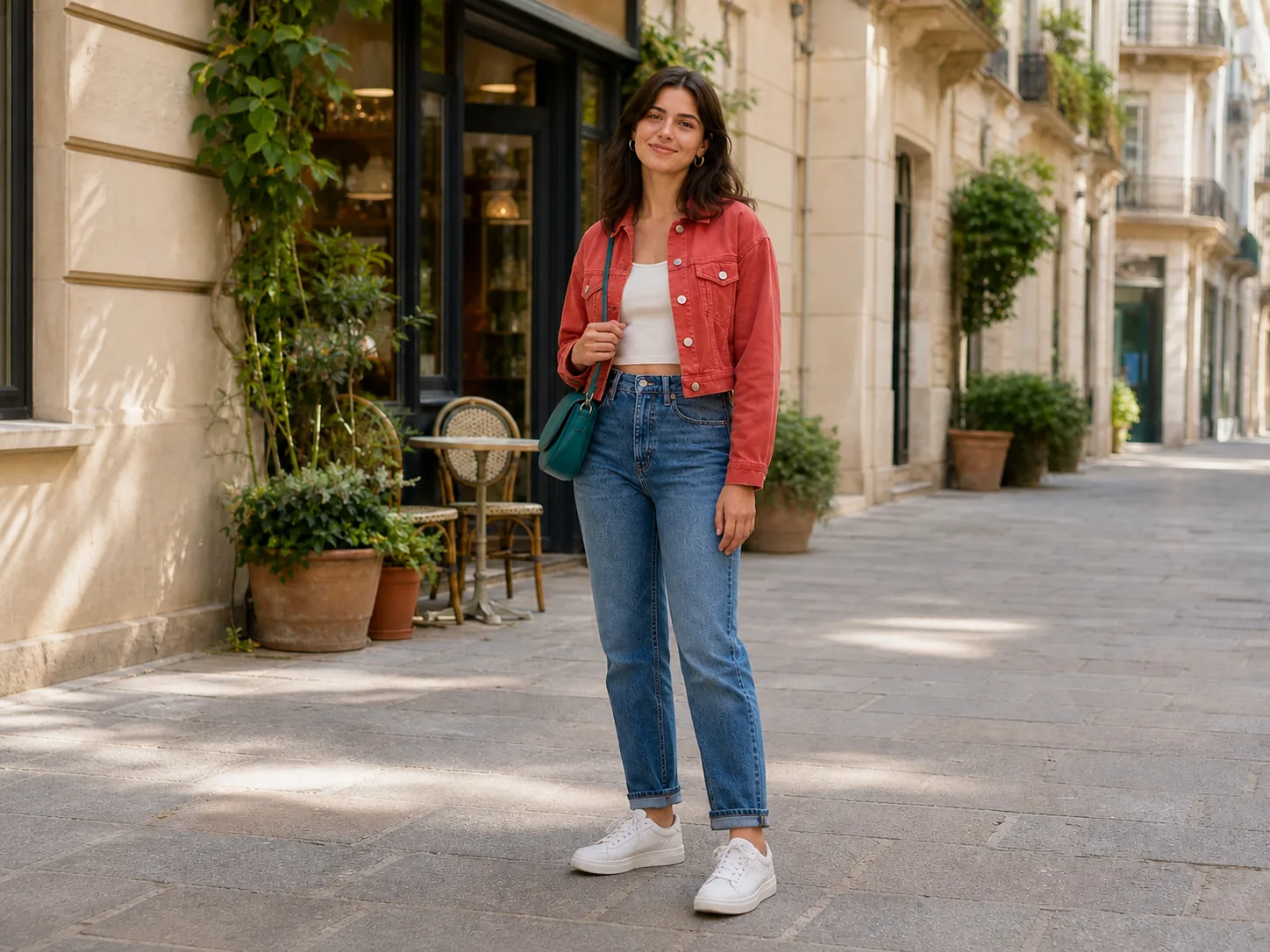
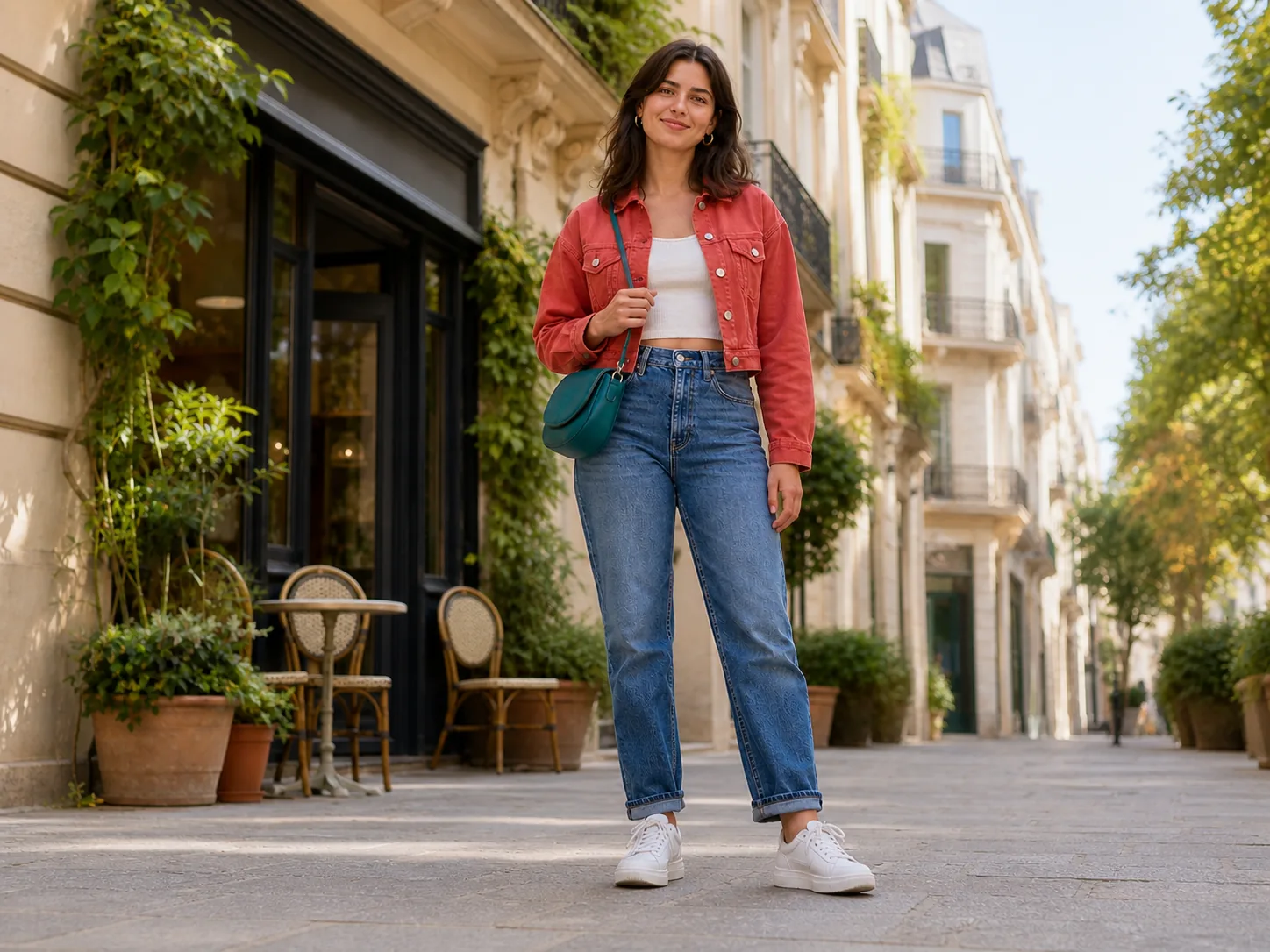
The woman, red jacket, teal bag, street, and daylight remain recognizable while the camera shifts sideways or drops to a lower position.
Upload one image, choose a camera viewpoint, and generate a new perspective of the same person, product, character, or scene. No 3D model and no camera-angle prompt required.
Example results — your generated image will appear here
Real viewpoint examples
A useful camera-angle changer should make the viewpoint visibly different without turning the subject into something else. These two sets show horizontal and vertical camera moves on everyday photos.
The woman, red jacket, teal bag, street, and daylight remain recognizable while the camera shifts sideways or drops to a lower position.
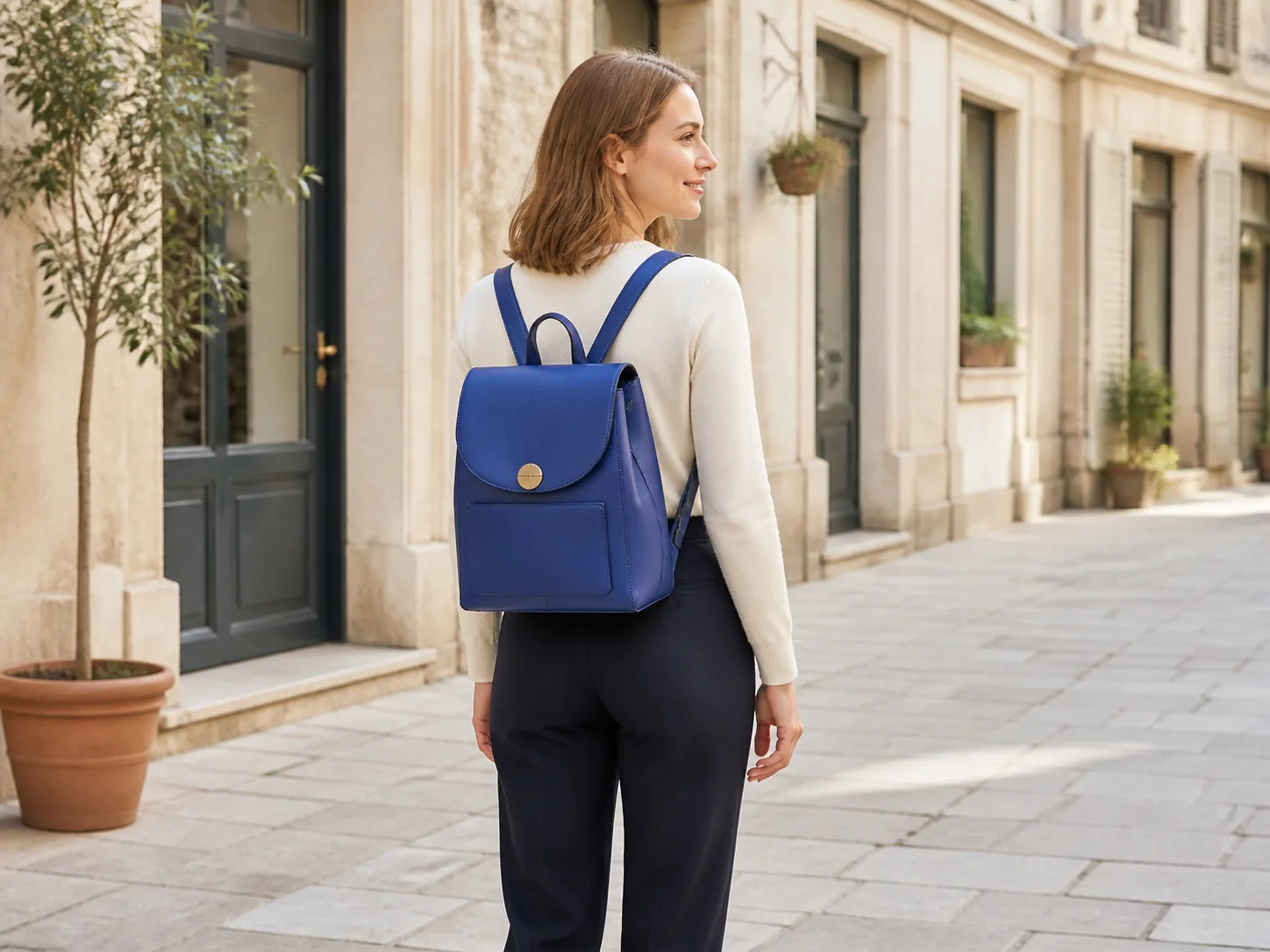
Here the blue backpack is the product to protect. Side and elevated views reveal its depth, straps, flap, front pocket, and hardware from different camera positions.
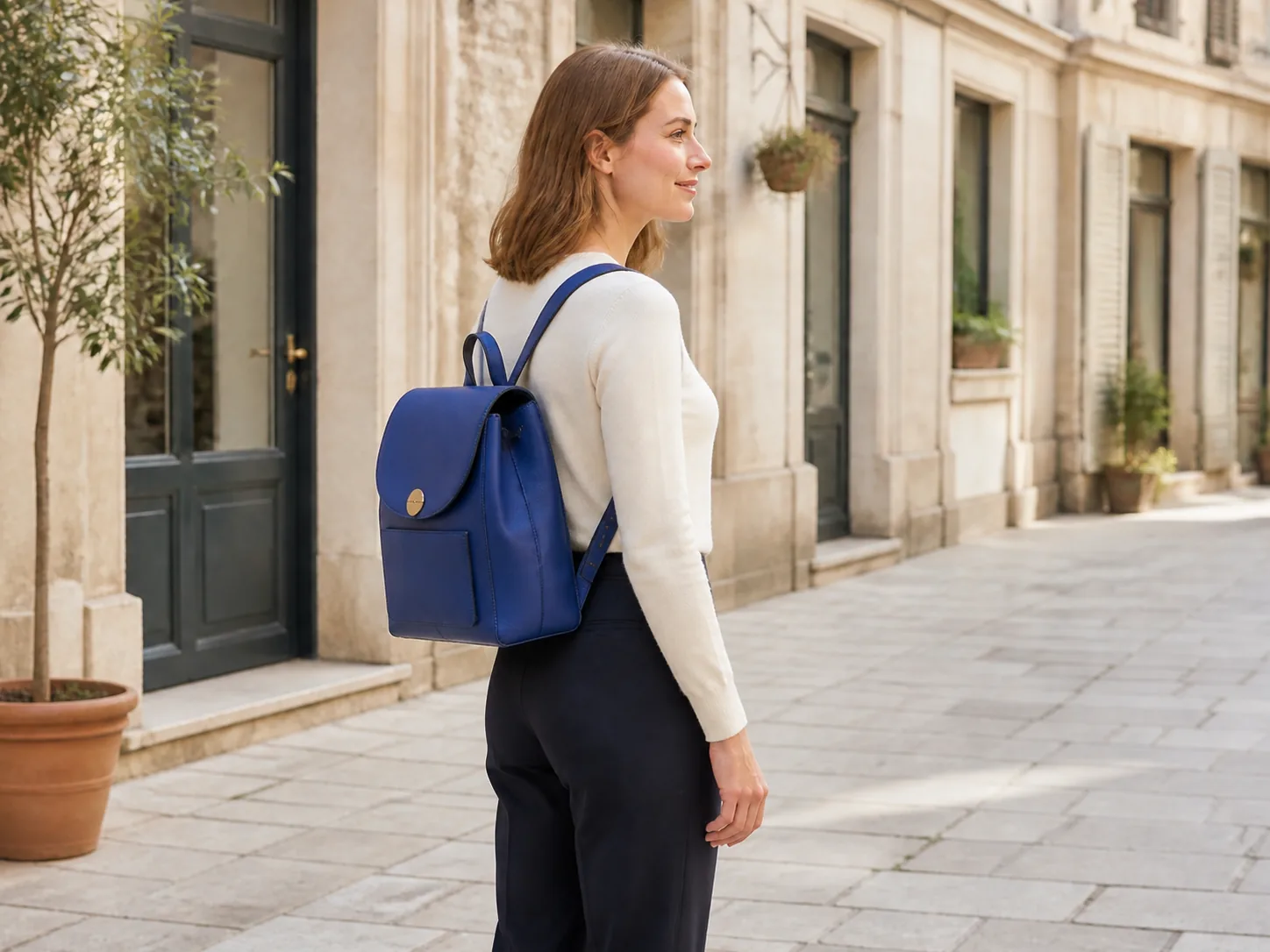
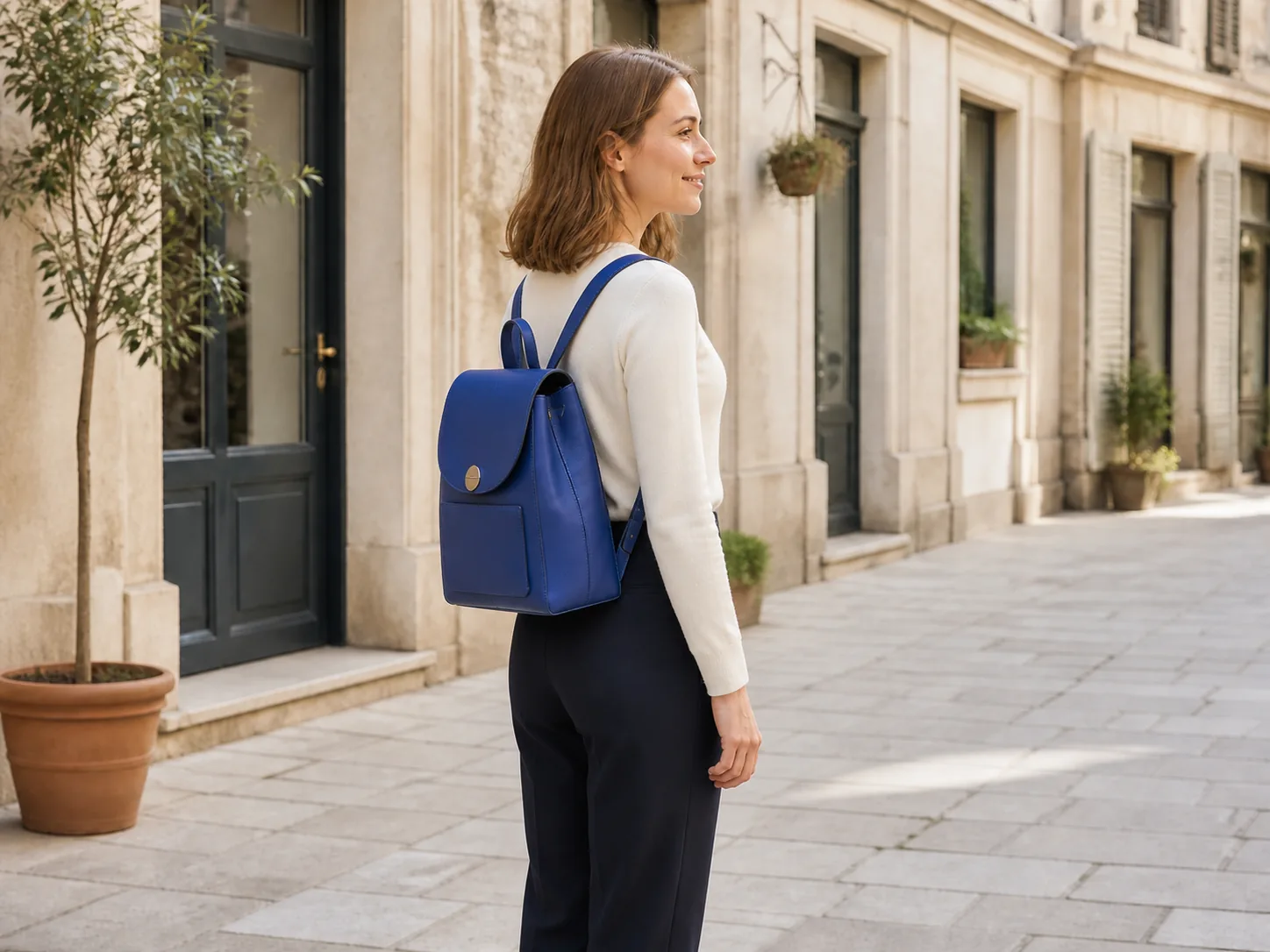
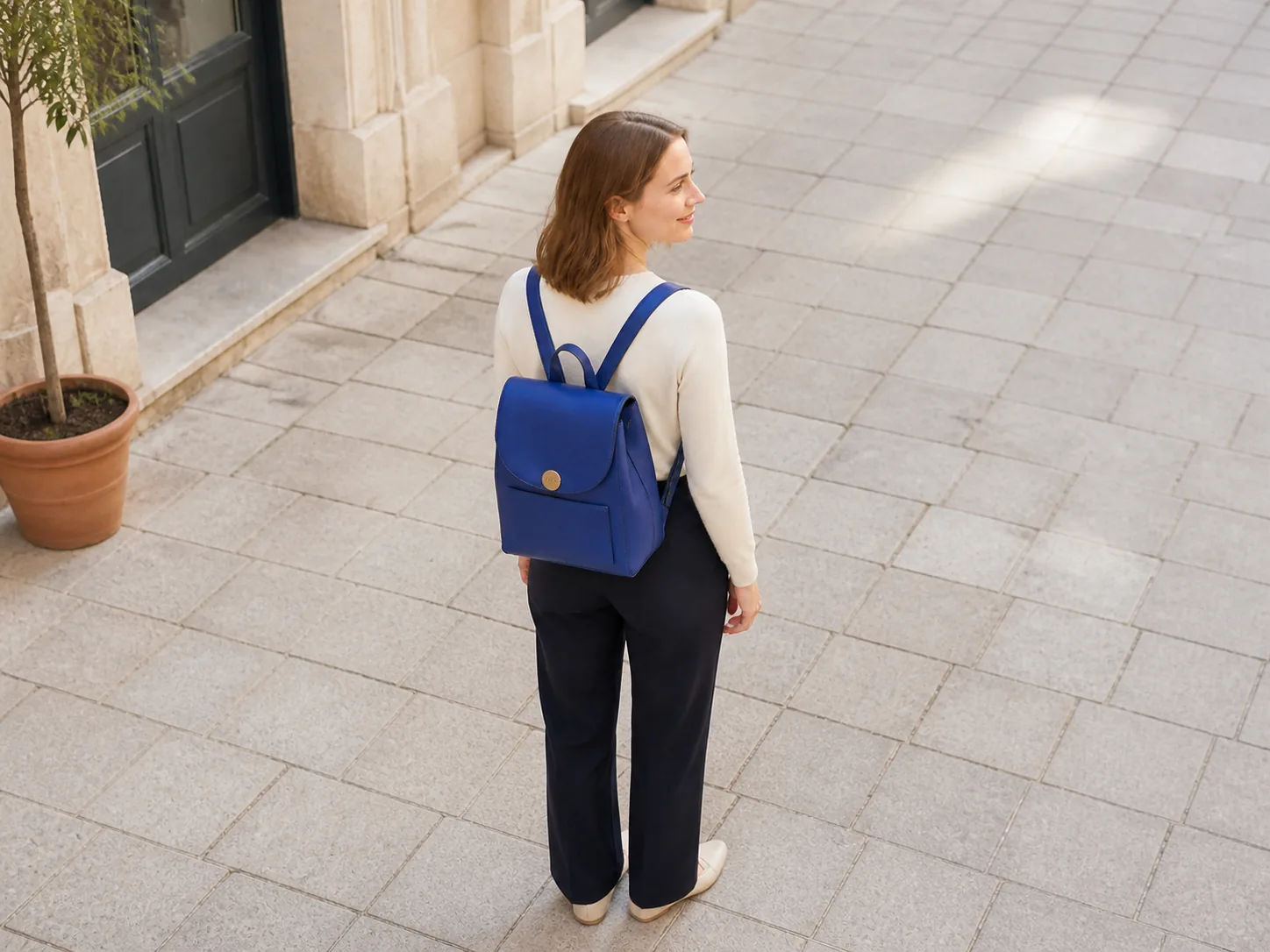
AI reconstructs details that are hidden in the source photo. Identity, materials, and lighting can stay close, but small details may vary—especially after extreme viewpoint changes.
3D Camera Control is an AI image-editing workflow that creates a new view from a flat reference photo. It is closer to moving a virtual camera around the subject than rotating or skewing the existing pixels.
MagicCreator uses clear presets instead of making you translate photography terms into a long prompt.
Use three-quarter views for a natural shift, profile views for a stronger side angle, or rear view when you need to see the subject from behind.
High, low, and top-down views change the relationship between the subject and its surroundings. They are useful when a side-to-side move is not visually different enough.
Keep Auto to follow the source composition, or select a common square, portrait, or landscape ratio before generating your new camera view.
Create the missing viewpoint for a real task instead of building a full 3D scene or arranging another photo shoot.
Explore side, rear, and elevated views of bags, clothing, accessories, décor, and other products when you only have one usable lifestyle photo. Review details before publishing a listing.
Turn one favorite portrait into a more varied photo set for posts, thumbnails, mood boards, or profile experiments without asking the person to pose again.
Prepare a side, rear, high, or low starting frame before moving into image-to-video generation, giving the next shot a clearer visual direction.
Explore how a character, costume, or accessory might read from another viewpoint when planning drawings, avatars, comics, or personal game projects.
Create an alternate composition from an existing hero image when a shop ad, poster, carousel, or social layout needs a different visual direction.
Test elevated, low, or side viewpoints of rooms, streets, vehicles, props, and travel images before committing to a larger creative idea.
The camera instruction is built into each preset, so the workflow stays focused on the image and the viewpoint you need.
Choose a photo with a visible main subject and enough space around it. A clear face, outline, product shape, and background give the AI more reliable visual evidence.
Pick left or right three-quarter, left or right profile, rear, high-angle, low-angle, or top-down. Then choose Auto or a common output aspect ratio.
Create the new viewpoint, compare important details with the source, and download the PNG when it fits your use. Try a smaller angle change if an extreme view invents too much detail.
Because a single photo cannot show every hidden surface, input quality and viewpoint choice both matter.
Choose a sharp image where the person or object is easy to separate from the background. Heavy blur, darkness, or obstruction leaves more details for the AI to guess.
Avoid cutting off the head, feet, straps, handles, or product edges when those parts should appear in the new view. A little surrounding space supports natural reframing.
Good lighting and distinct material details help the output keep recognizable colors, seams, hardware, clothing, and surface texture.
A three-quarter view usually requires less reconstruction than jumping directly from a front photo to a complete rear or top-down view.
Check faces, hands, text, logos, clasps, patterns, and product geometry before using an output. Generative perspective changes can alter small or hidden features.
The same preset can produce a different reconstruction on another run. Generate again or choose a closer viewpoint when the first result drifts from the source.
Straight answers about changing photo angles with AI.
3D Camera Control is an AI image tool that generates a new camera viewpoint from one reference image. Instead of rotating the flat canvas, it attempts to reconstruct how the same subject and scene would appear from the side, rear, above, or below.
Yes. Upload one source image and generate separate views from it. MagicCreator provides left and right three-quarter, left and right profile, rear, high-angle, low-angle, and top-down presets. Each generation creates one requested view.
You can choose left three-quarter, right three-quarter, left profile, right profile, rear view, high angle, low angle, or top-down. The original uploaded image remains your starting viewpoint.
The tool is instructed to preserve identity, pose, clothing, product design, lighting, background, and style as closely as possible. Exact matches are not guaranteed because hidden surfaces must be generated. Moderate angle changes and clear inputs usually require less guessing.
No. Rotating a photo turns every existing pixel together and does not reveal a new side. AI camera control generates a different perspective, including surfaces and background geometry that were not visible in the uploaded view.
No. The tool runs in your browser and starts from a normal image. You do not need 3D modeling software, a depth map, camera coordinates, or manual masking to request one of the preset views.
Use a sharp image with one obvious subject, good lighting, visible edges, and enough room for reframing. Extremely cropped, blurry, dark, reflective, transparent, or heavily obstructed subjects may be harder to reconstruct consistently.
Yes, especially for exploring alternate product views, listing concepts, ads, and content layouts. Check materials, hardware, labels, logos, and geometry carefully before treating an AI-generated view as an exact product record.
Yes. Choose Auto to stay close to the source framing, or select 1:1, 4:5, 9:16, or 16:9 for common square, portrait, vertical, and landscape uses. The output is generated as a PNG.
No. Choose a clearly named camera-view preset and MagicCreator adds the viewpoint instruction automatically. Your uploaded image remains the reference for the subject and scene.
Upload your photo, choose the viewpoint you need, and see how the same subject looks from another camera position.