
Is FLUX 3 Image the same as FLUX Image 3.0?
The official product name is FLUX 3 Image. If you are looking for Flux Image 3.0, this page provides the FLUX 3 Image model from Black Forest Labs.
Create detailed images from a prompt, or combine up to 10 references for a new scene or focused edit. FLUX 3 Image brings native 4K output to your everyday creative projects.
Example results — your generated image will appear here
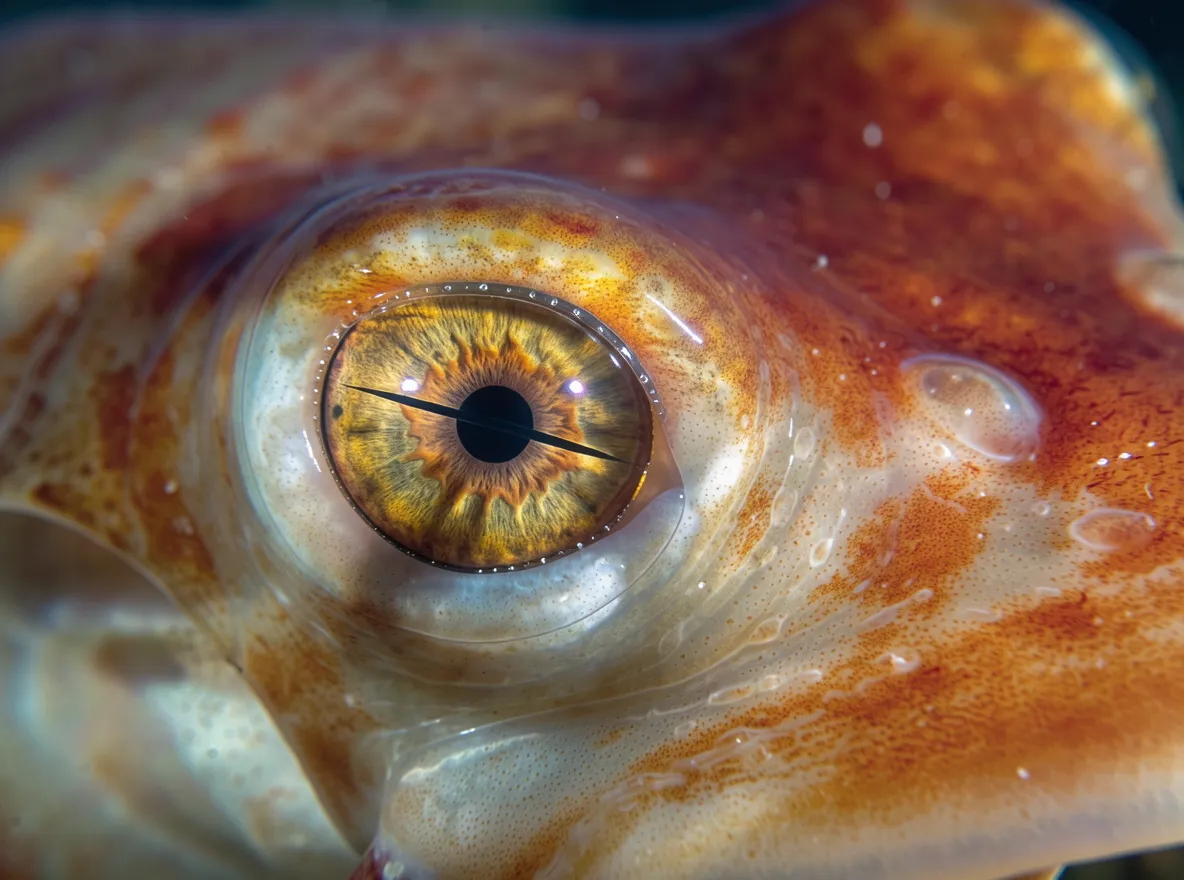
Explore close-up photography, expansive scenery, illustrated diagrams, and bold lettering. Open an image to see it in full, or copy its prompt as a starting point.
“Extreme macro wildlife photograph of an unidentified marine creature, filling the frame with its pale ivory, finely textured skin and vivid red-orange mantle. One enormous golden-amber eye dominates the composition, featuring a razor-thin horizontal black pupil, intricate radial striations, glossy reflections, and visible moisture along the cornea. Capture at an intimate eye-level angle with a true macro lens, extremely shallow depth of field, tack-sharp focus on the eye and surrounding skin, and a gradual falloff into soft blur across the creature’s body. Use diffused natural underwater light with subtle specular highlights, rich micro-contrast, realistic organic texture, and deep cinematic shadows. High-end analog wildlife photography aesthetic, shot on 120 medium-format film, fine but visible film grain, gentle halation around highlights, natural color rendition, soft tonal rolloff, restrained saturation, detailed shadow retention, slight lens character, and museum-quality darkroom print finish. No text, no illustration, no CGI, no artificial sharpening.”
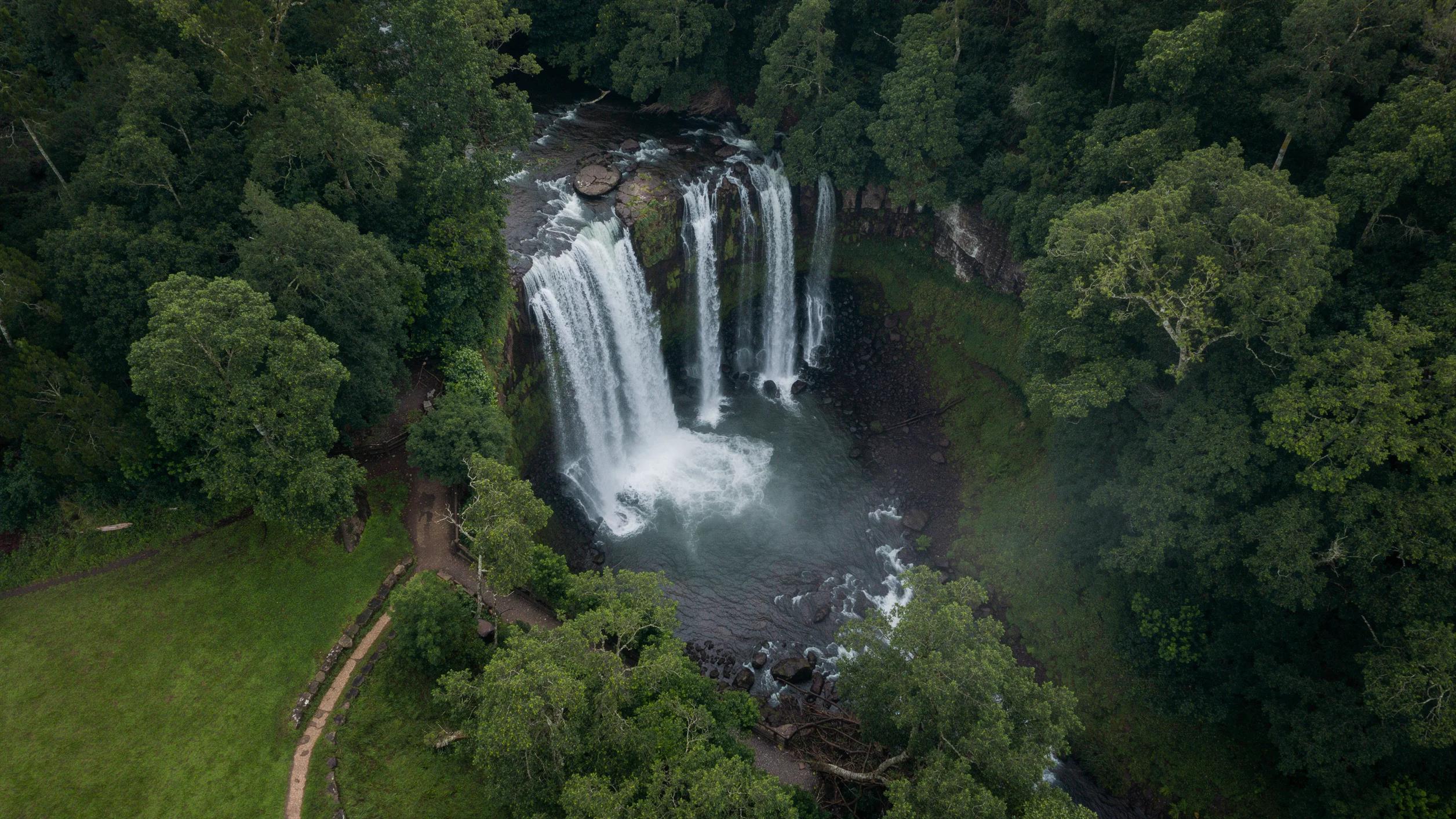
“An aerial view of a waterfall cascading through a dense, verdant forest into a misty pool.”
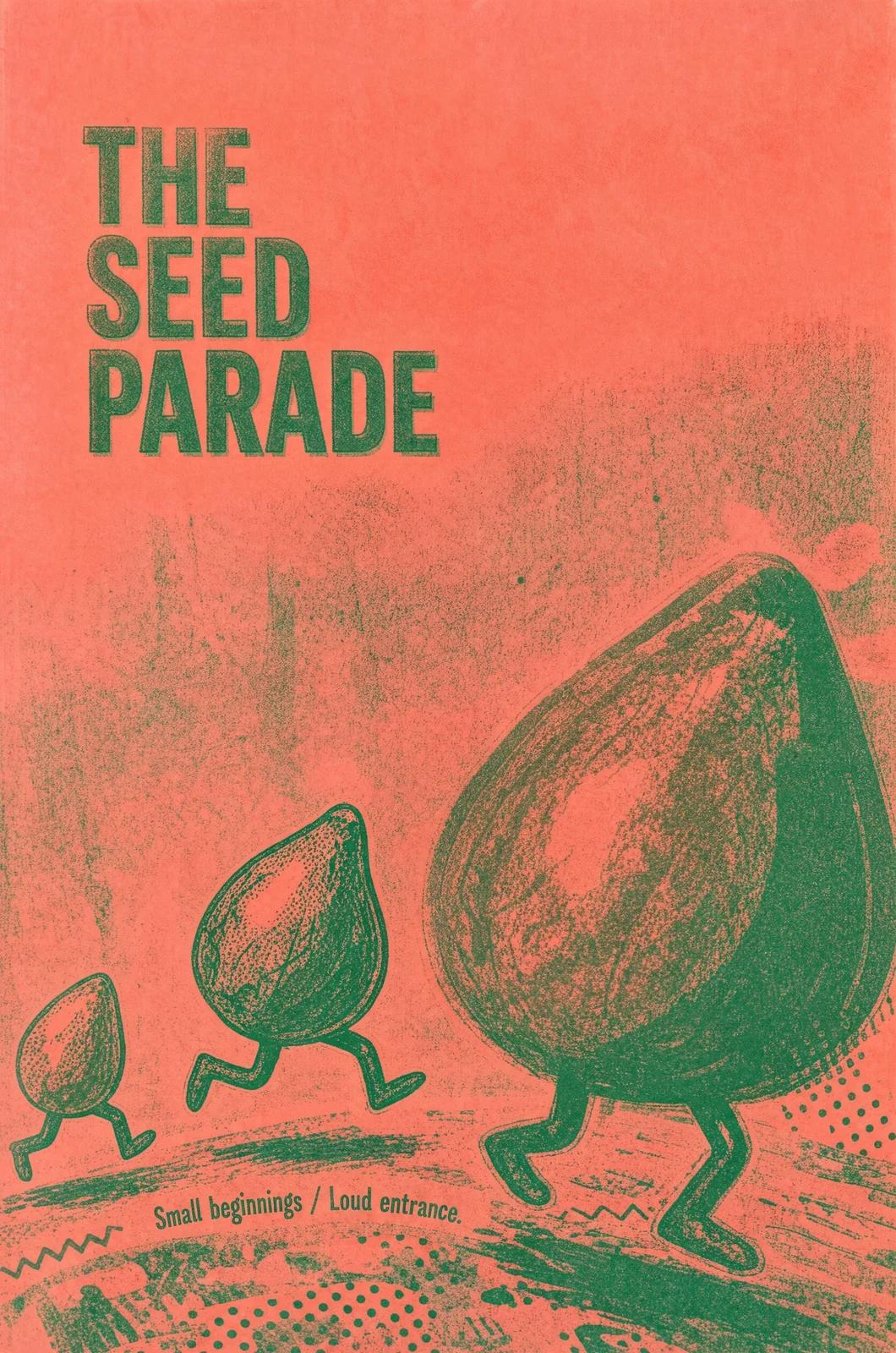
“A coral and green risograph poster, The Seed Parade: giant seeds marching on root legs down a dotted street.”
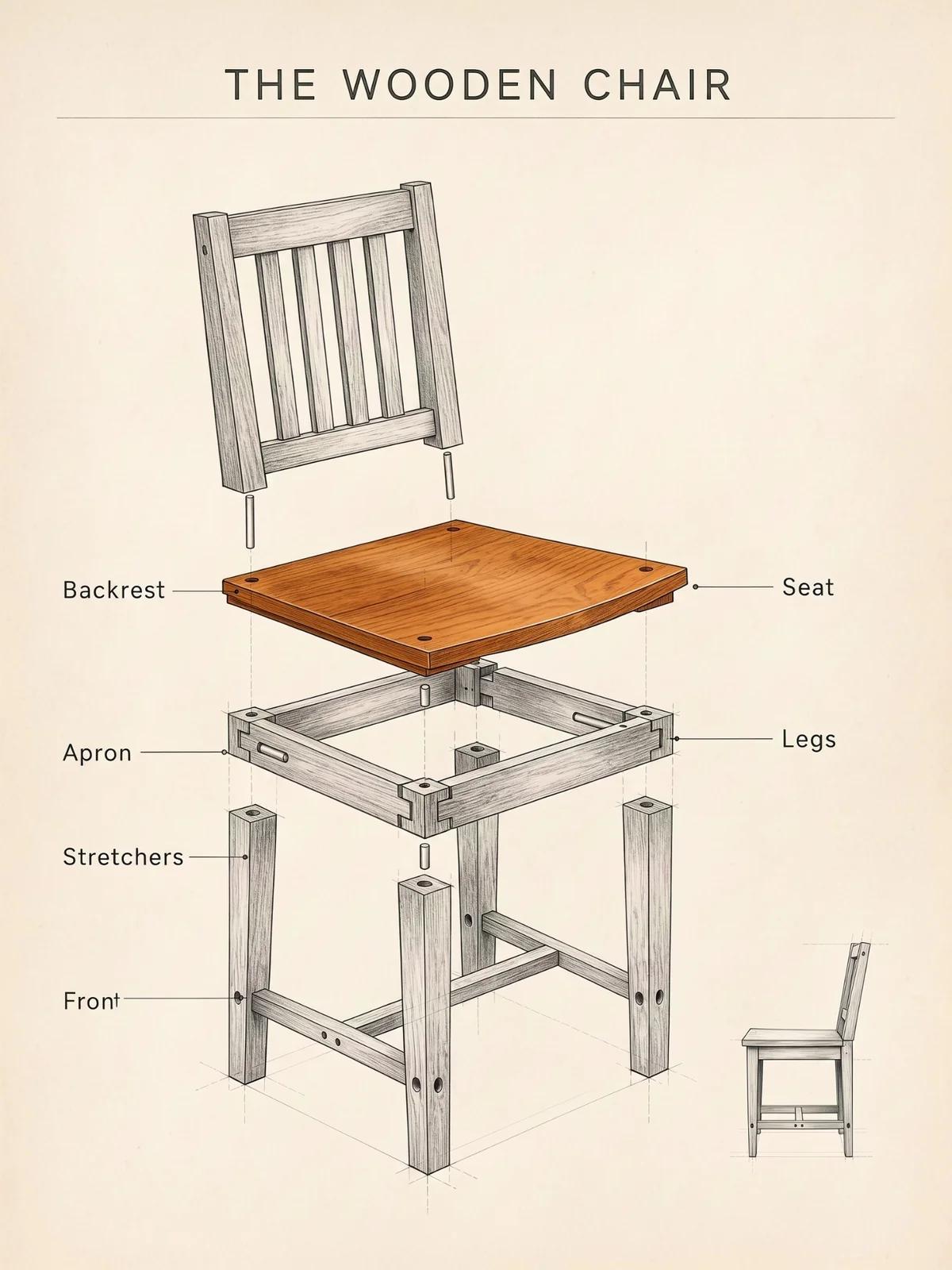
“An exploded-view pencil drawing titled The Wooden Chair, with a warm wooden seat and labelled parts on cream paper.”
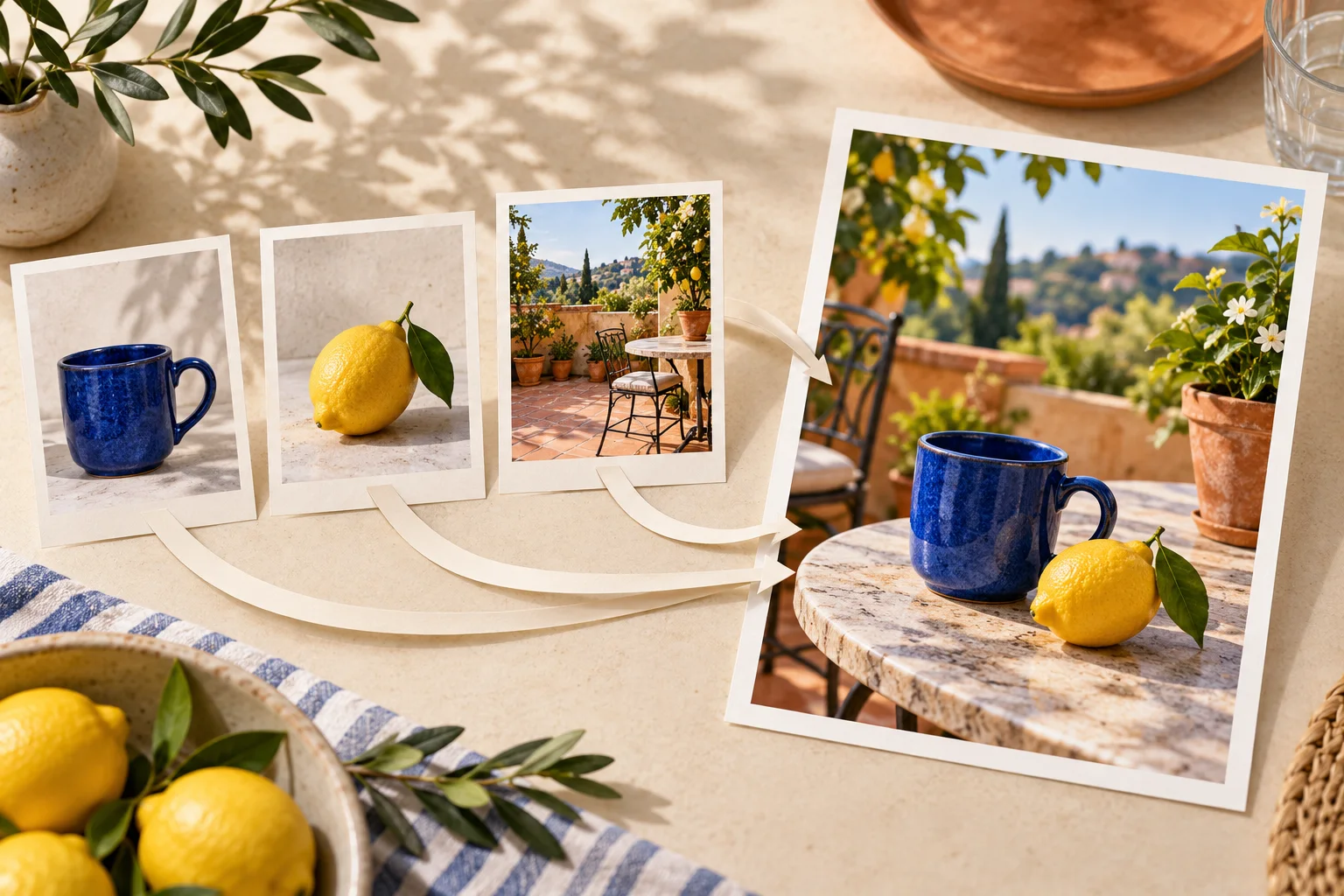
FLUX 3 Image is Black Forest Labs’ image generation and editing model in the FLUX 3 family. It accepts a text prompt alone or a prompt with up to 10 reference images. Its emphasis is control over composition and edits, with native high-resolution rendering. It is released and available in the MagicCreator generator above.
Give the model a clear visual brief, supply the objects you want to reuse, and choose the output size for the finished image.
Write the main subject, style, colors, and placement in your prompt. For a poster, include the exact headline and describe how the illustration should sit around it. The result can combine imagery and lettering in one graphic; review spelling before publishing.
Upload up to 10 images and explain what to borrow from each. A scene photo can establish the setting while another supplies an object. In this example, a miniature van replaces a turntable cartridge, with lighting adjusted to fit the original scene.
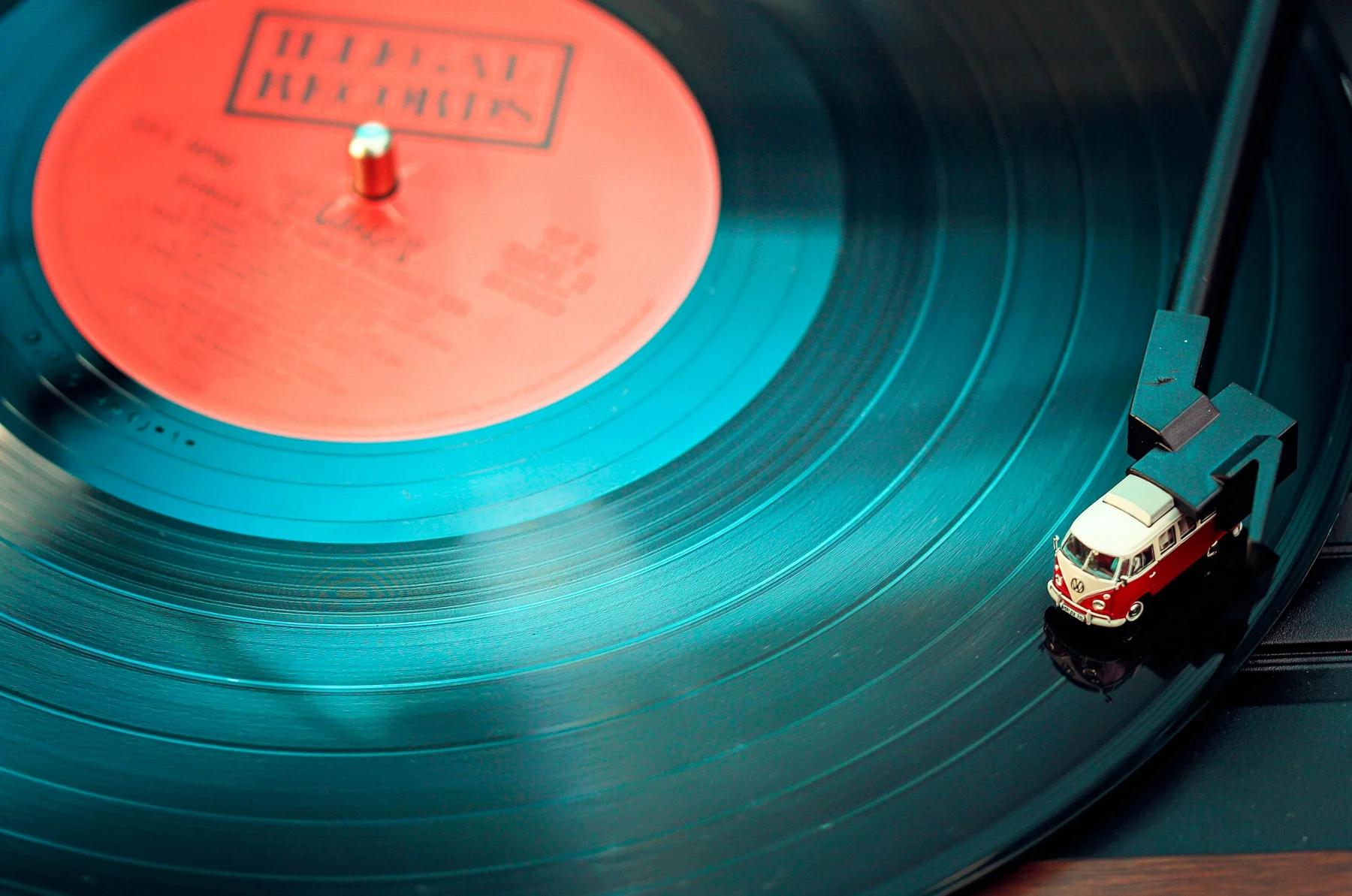
Choose 2K or 4K when foliage, fabric, surfaces, or other small details matter. Black Forest Labs describes these as native renders rather than a separate enlargement step. Use a lower resolution for initial ideas, then generate the version you want to keep.
The generator supports both a fresh image and an edit guided by uploaded references.
Keep FLUX 3 Image selected. Use Text to Image for a new visual, or Image to Image to upload references.
Name the subject, light, style, and composition. For edits, say what should change and what should stay. With several uploads, describe each image’s role by its order.
Choose an aspect ratio, resolution, and output format. Review the displayed credit cost, generate, and download the image. Use a focused follow-up prompt when another adjustment is needed.
Finish a single useful visual with the level of control your idea needs.
Bring a product reference into a seasonal table setting or fresh backdrop for a listing or social post.
Combine a short headline, deliberate spacing, and a distinctive illustration for a local event or invitation.
Use separate photos for furniture and a room, then describe where each piece should belong.
Upload a favorite image and request a new setting, season, or visual style while asking to keep your subject recognizable.
Describe a simple diagram, labelled object, or visual breakdown for a class project or hobby guide.
Create wide landscapes or close-up textures at a chosen resolution for your phone or desktop.
Choose the right input, understand the available controls, and know what to expect before generating.
The official product name is FLUX 3 Image. If you are looking for Flux Image 3.0, this page provides the FLUX 3 Image model from Black Forest Labs.
Yes. FLUX 3 Image is available in the generator on this page for text-to-image creation and image-to-image editing. Select it, enter a prompt, and sign in to generate.
You can upload up to 10 reference images. The provider requires each image to be at least 256 × 256 pixels and no larger than 16 megapixels. Explain the role of each image in the prompt.
Auto uses the first reference image to guide the output’s aspect ratio. Choose a fixed ratio if you need a different shape for a poster, social post, or wallpaper.
Yes. Black Forest Labs supports native 2K and 4K rendering. MagicCreator offers 768sq, 1K, 1.5K, 2K, and 4K; the exact pixel dimensions depend on the chosen aspect ratio.
MagicCreator currently provides prompt-based creation and reference-image editing, without a visual bounding-box editor. Black Forest Labs also offers layout and box-based editing controls, but those controls are not exposed in this generator. Prompt-based edits should be reviewed for unintended changes.
Yes. Grounding is enabled in MagicCreator’s current FLUX 3 Image integration. The provider can use web and image search to inform generation. There is no grounding switch in this generator, and factual details still need review.
The current cost is 6 MagicCreator credits per output image. The generator displays the total before you submit. FLUX 3 Image is a paid model.
FLUX 3 Image accepts up to 10 references and supports native 2K and 4K output. MagicCreator’s FLUX Kontext Pro and Max integrations accept one reference each. Choose FLUX 3 Image when you need several source images or higher-resolution rendering.
Commercial use is subject to the applicable service terms and the rights in your inputs and outputs. Use source images you have permission to use, and review recognizable people, trademarks, and generated text before publishing.
Start with one clear idea or a few source photos, then create the image in the format your project needs.