
80s Photo Filter

Turn a modern portrait into a believable 1980s photo. Upload your image, pick a ready-made style prompt, edit any detail you want, and generate with your preferred image model.

Editable style promptsFace-aware photo editingNano Banana 2 and GPT Image 2
533 / 2000
After
After
Before
Before
Drag to compare
After
After
Before
Before
Drag to compare

Example results — drag the slider to compare

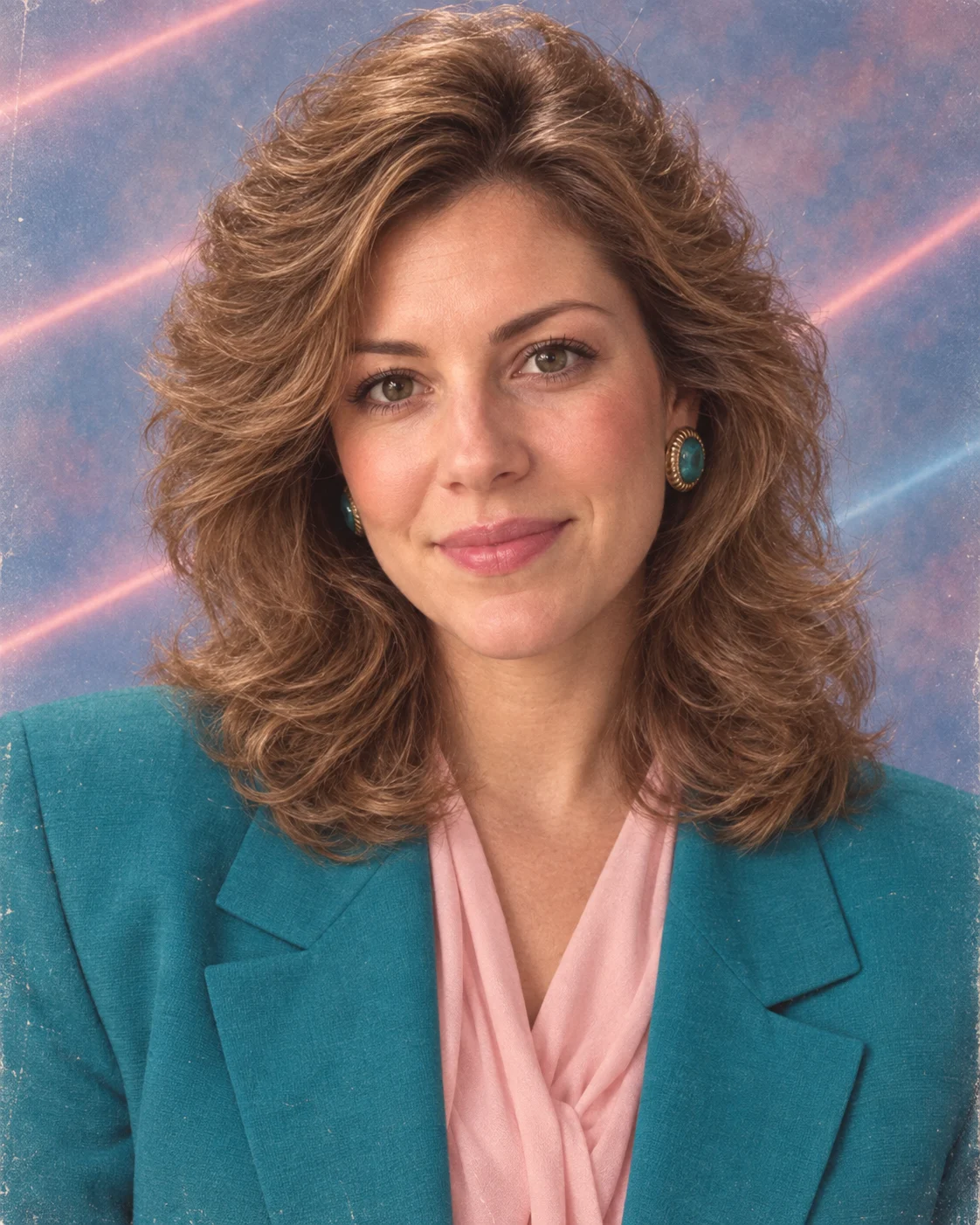
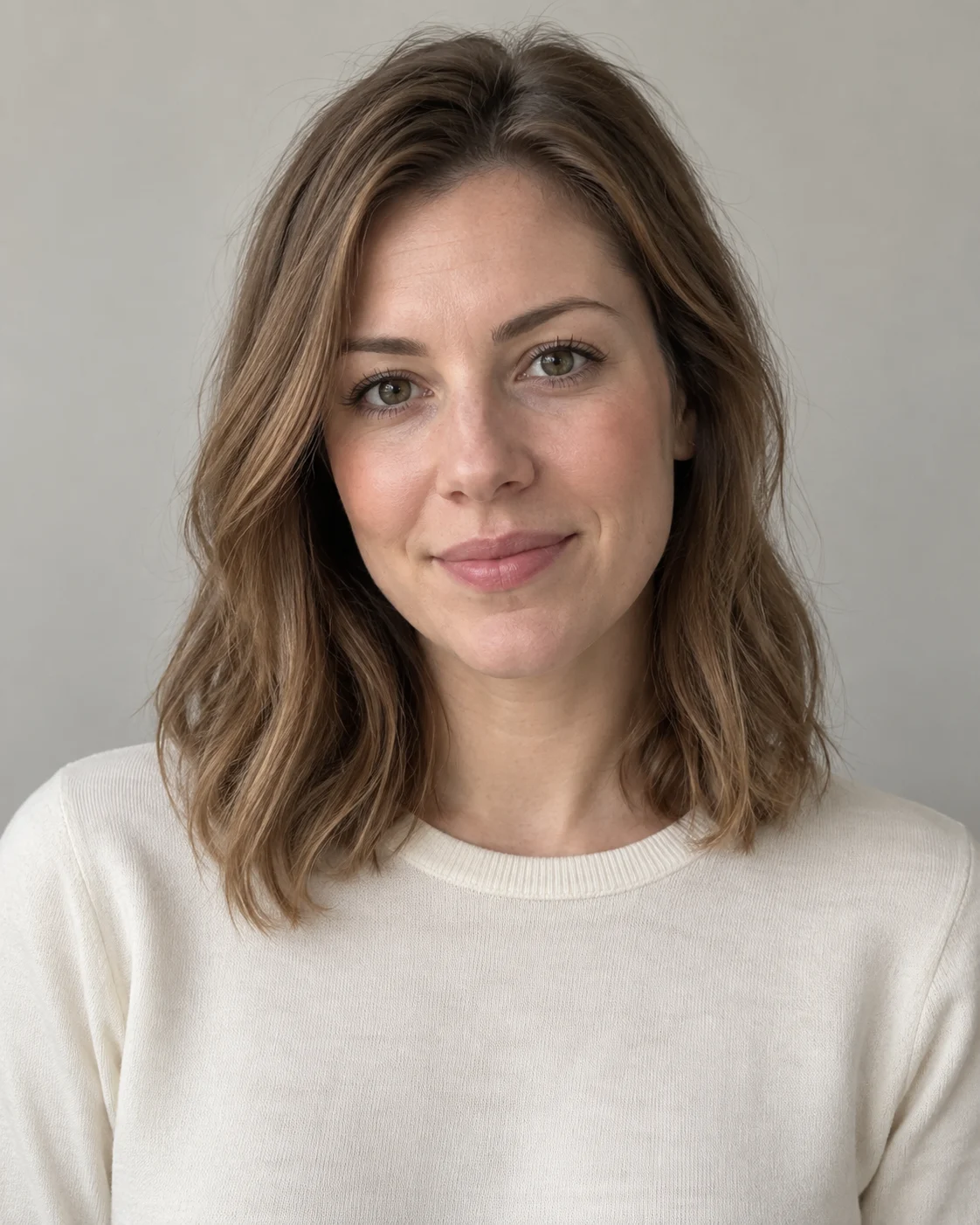
Woman transformed into a 1980s yearbook portrait

What Is an 80s Photo Filter?

An 80s photo filter uses your uploaded image as the subject while rebuilding its styling, lighting, background, and analog texture to resemble a photograph from the 1980s.

  • Your Face Stays the Reference
    The uploaded portrait anchors facial features and expression while the model changes hair, clothing, lighting, and scenery around the subject.
  • The Whole Scene Changes
    Unlike a simple color overlay, the result can add feathered hair, period fashion, studio backdrops, direct flash, film grain, and print wear.
  • Every Prompt Is Editable
    Choose a preset for a useful starting point, then change the decade, outfit, colors, background, texture, or any detail before generating.

How to Use the 80s Photo Filter

Start with a clear portrait, use a preset as your first draft, and adjust the visible prompt when you want a more personal result.

01

Upload a Portrait

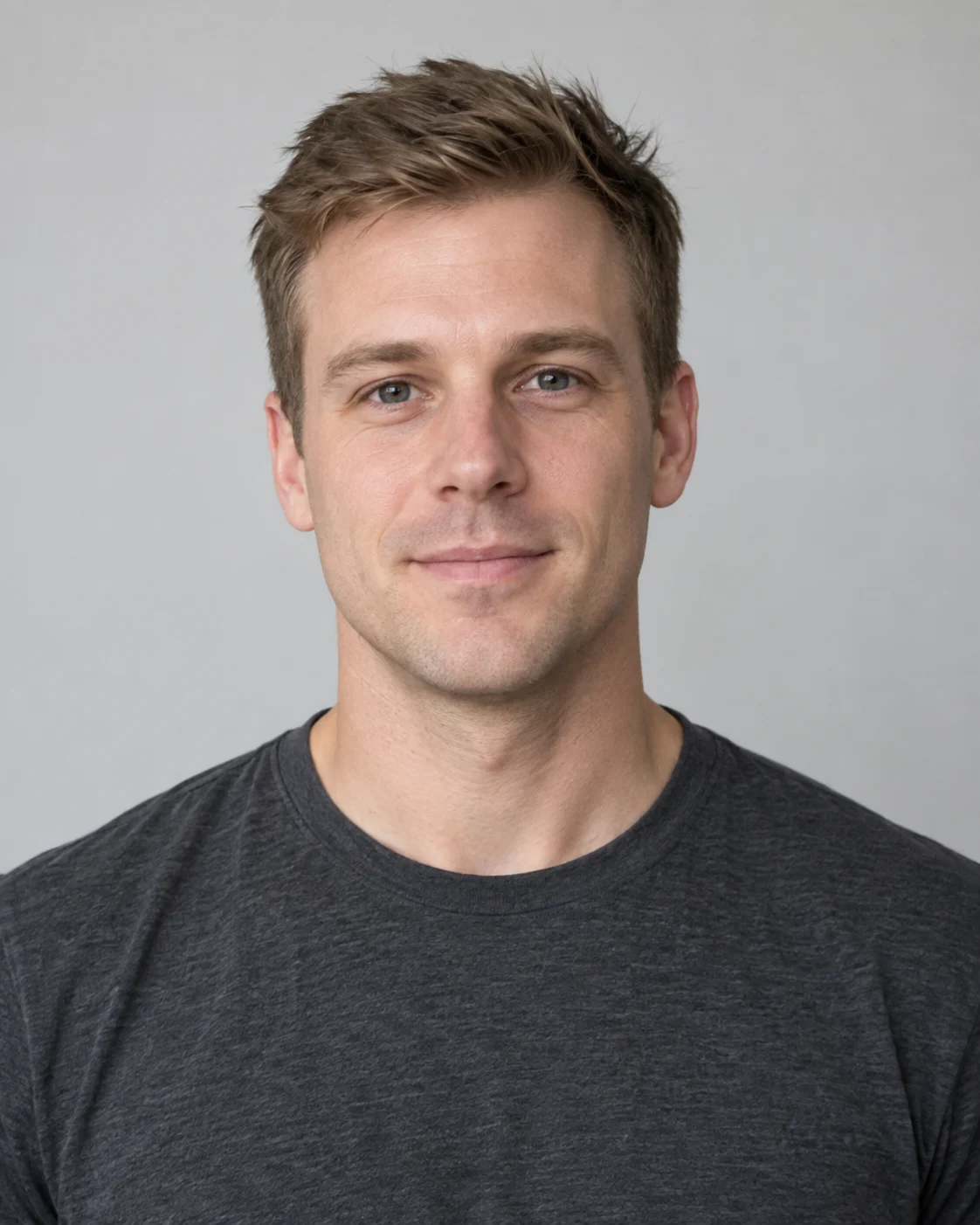
Choose a sharp photo with one clearly visible face. Even lighting and some space around the hair and shoulders give the model more room to restyle the image.

02

Pick and Edit a Prompt

Select Yearbook Portrait, Neon Night, Mall Glam, or VHS Snapshot. The full instruction appears in the prompt box, where you can edit clothing, colors, setting, or texture.

03

Choose a Model and Generate

Use Nano Banana 2 or GPT Image 2, choose your output settings, and generate. Compare the face with your source before downloading or trying another prompt.

How to Try the Instagram 80s Filter Trend

The recognizable look comes from several era signals working together, not from neon color alone. Use the editable prompt to steer the result toward the version you want to post.

Build a Convincing Yearbook Portrait

Start with the Yearbook Portrait preset for the familiar school-photo and department-store studio look. It combines period hair, clothing, flash, a painted backdrop, and scanned-print texture.

  • Keep identity and expression explicit in the prompt
  • Describe hair, wardrobe, lighting, background, and film texture
  • Use 4:5 or 1:1 framing for a social portrait
1980s yearbook portrait with feathered hair and pastel laser backdrop

Try a Neon Nightlife Variation

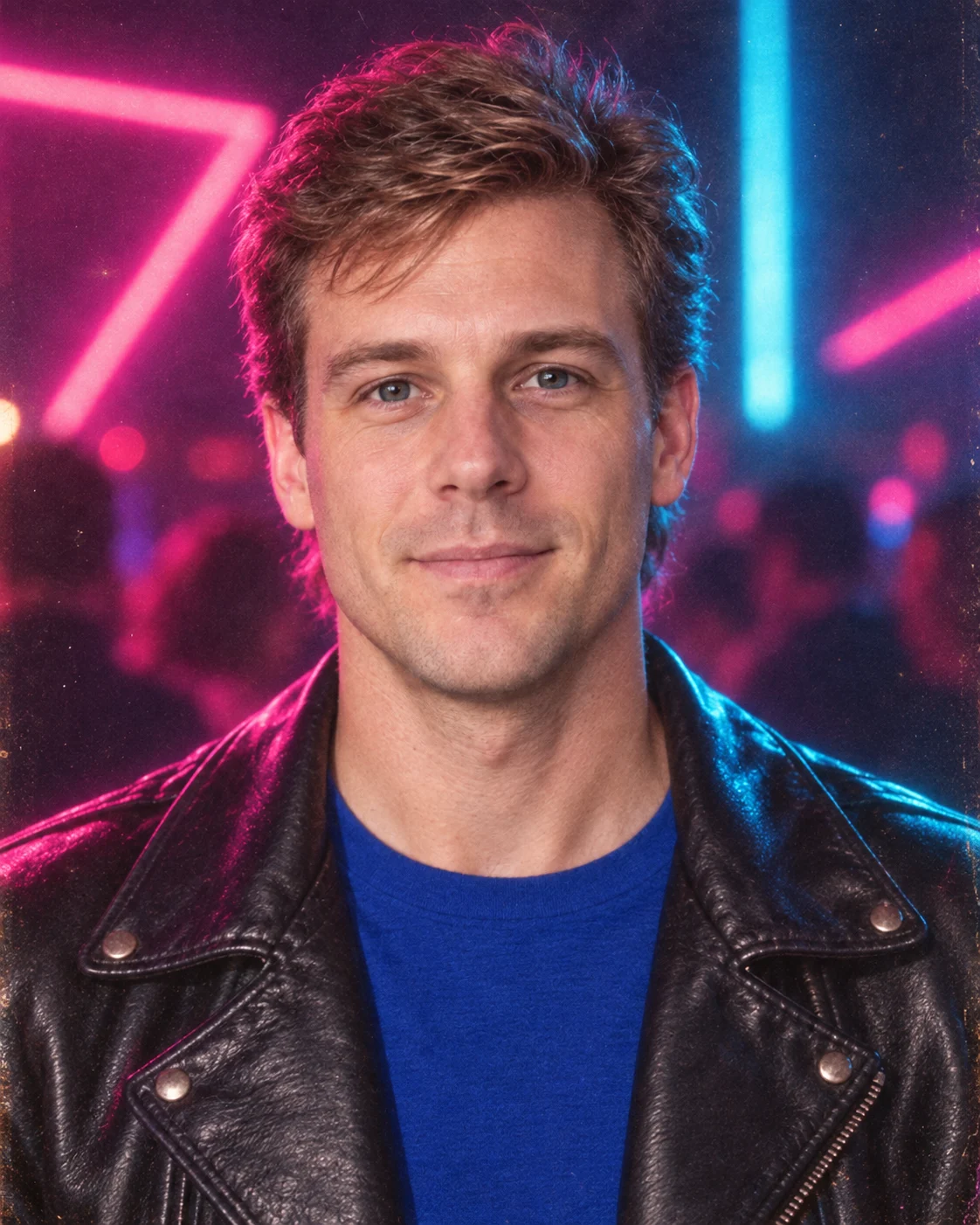
Choose Neon Night when you want a bolder music-video mood. Magenta and cyan rim light, leather, geometric signs, flash, grain, and halation create the effect without obscuring the face.

  • Keep neon in the background and edge lighting
  • Ask for photorealism to avoid an illustrated result
  • Remove text and timestamps unless they serve your post
1980s synth-pop portrait with magenta and cyan neon lighting

80s AI Photo Prompts for Different Retro Looks

Copy a complete prompt for a yearbook, neon, mall-glam, or VHS look. You can also select the same preset above and edit it before generating.

Yearbook Portrait

Transform this photo into an authentic 1986 department-store yearbook portrait. Preserve the person's identity, facial structure, expression, and framing. Add voluminous feathered 1980s hair, period-appropriate clothing and makeup, direct studio flash, a mottled pastel blue and mauve background with faint diagonal laser-light streaks, gentle 35mm film grain, a slightly warm color cast, and believable scanned-print texture. Keep it photorealistic and tasteful, not a costume parody. Do not add text, logos, watermarks, or borders.

Neon Night

Transform this photo into a believable 1984 synth-pop nightlife portrait. Preserve the person's identity, facial structure, expression, and framing. Add a softly feathered 1980s hairstyle, era-appropriate fashion, magenta and cyan nightclub rim lighting, a softly blurred geometric neon background, direct on-camera flash, subtle 35mm grain, mild halation, and slightly faded scanned-film texture. Keep the result photorealistic rather than exaggerated cosplay. Do not add text, logos, watermarks, or borders.

Mall Glam

Restyle this photo as a polished late-1980s shopping-mall glamour portrait while keeping the person's identity, expression, pose, and framing recognizable. Use softly teased hair, colorful layered fashion, diffused beauty lighting, a pale airbrushed studio backdrop, gentle skin highlights, warm consumer-film color, light grain, and subtle print fading. Make it look like a real portrait package from the era, not a modern costume shoot. Do not add text, logos, watermarks, or borders.

VHS Snapshot

Turn this photo into a candid frame from a late-1980s home video while preserving the person's identity and main composition. Use casual period clothing and hair, warm indoor lighting, slightly soft focus, modest analog noise, faint color bleed, subtle scan lines, and realistic VHS softness. Keep faces clear and avoid excessive distortion. Do not add a timestamp, text, logos, watermarks, or borders.

Get a Better Retro Photo Without Hiding the Face

The best results balance a recognizable person with enough visual evidence to make the decade clear.

Use a Clear Face

Front-facing or three-quarter portraits with sharp eyes and even light usually give the model a stronger identity reference.

Leave Space for Hair

A tight crop can cut off feathered or teased hairstyles. Include the full head and some shoulder area in the uploaded photo.

Keep Texture Controlled

Film grain, VHS noise, fading, and scratches should support the era. Reduce them in the prompt if they begin to hide facial detail.

80s Photo Filter Questions

Quick answers about prompts, portraits, models, and social sharing.

1

Does clicking a preset fill the prompt box?

Yes. Each preset places its complete instruction in the prompt box. You can read it, edit any detail, and submit the edited version.

2

Which preset should I use for an Instagram 80s filter look?

Yearbook Portrait is the clearest starting point for the familiar studio-photo trend. Neon Night is better for a bolder music and nightlife look.

3

Can I keep my face while changing the hairstyle and outfit?

Yes. The presets explicitly ask the model to preserve identity and expression while changing era-specific styling. Generative edits can still vary small facial details, so compare the result with the source.

4

Can I write my own 80s AI photo prompt?

Yes. Edit a preset or replace it completely. Include the photo situation, identity-preservation instruction, hairstyle, wardrobe, lighting, background, and analog texture you want.

5

Which image model can I use?

The page offers Nano Banana 2 and GPT Image 2 as visible choices. Both support image-to-image editing, so you can try the same photo and prompt with either model.

6

Will the result look like a real 1980s photograph?

The presets request photographic lighting, film grain, color response, and print or video texture. Results are generated images, not historical photographs, and realism varies with the source and model.

7

Can I use the result on social media?

Yes. Choose a portrait-friendly aspect ratio, review the generated face and details, then download the image for your post, profile, carousel, or themed event.

Give Your Photo an Authentic 80s Look

Upload a portrait, choose a style prompt, edit the details, and generate your retro version with the model you prefer.