
Gemini Omni 1.1 Flash is Google's fast video generation and editing model for turning text, images, or short video context into clips with audio. The 1.1 release adds first-and-last-frame control, scene extension, a 360p draft option, and upscaled 1080p or 4K delivery. The best workflow depends less on the headline resolution than on what you already have: an idea, a starting image, two fixed endpoints, a set of references, or a clip that needs another beat.
This guide helps everyday creators choose that workflow, write a usable prompt, budget a 10-second MagicCreator generation, and avoid the most important traps. MagicCreator currently exposes text, first-frame, first-and-last-frame, and reference-image creation with the real 1.1 model. Google's conversational editing and video-extension capabilities belong to the broader model, but are not controls in MagicCreator's current shared generator.
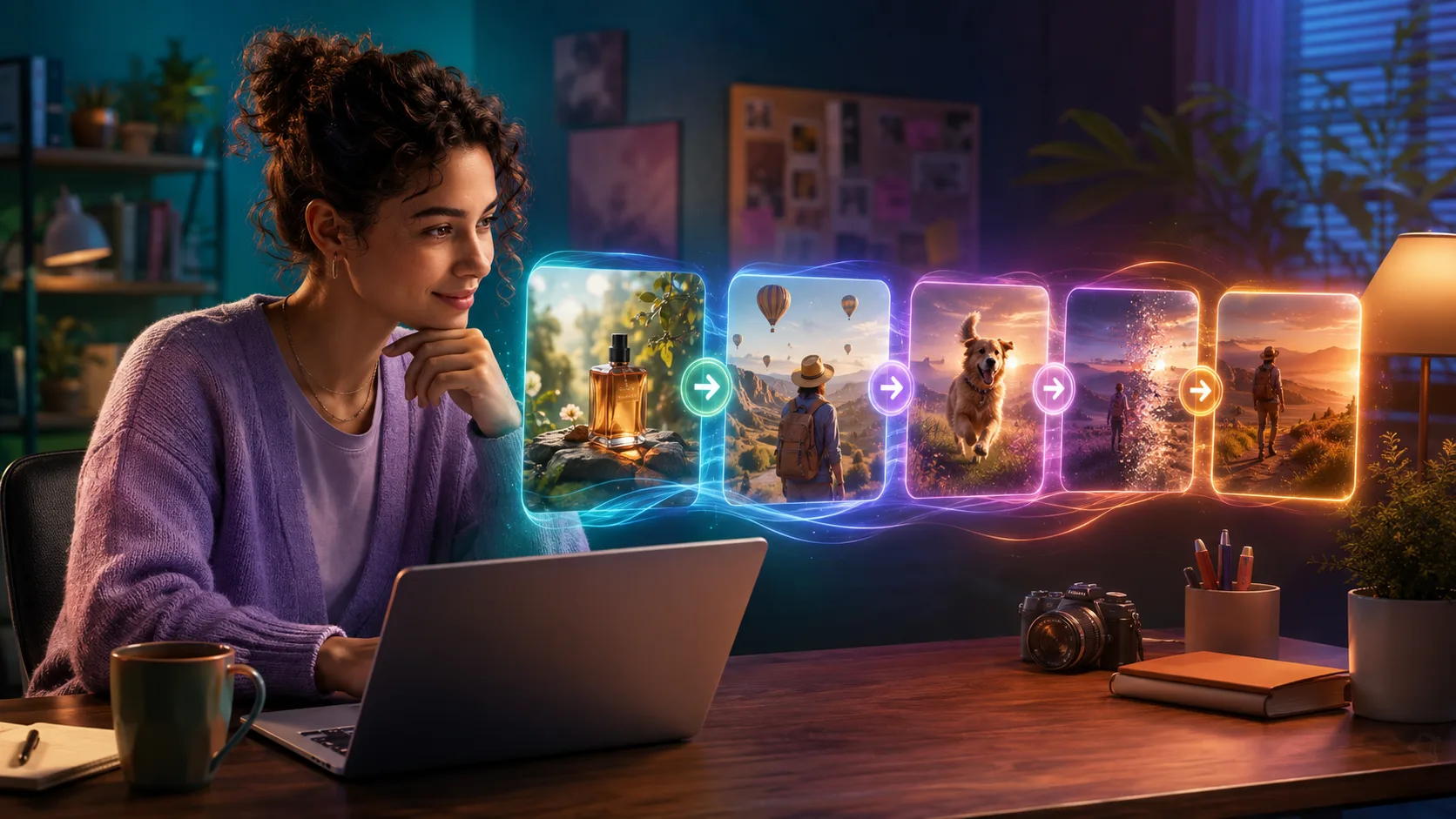
Editorial artwork showing how one video idea can move through several creation workflows. It is not a Gemini Omni output or benchmark.
Gemini Omni 1.1 Flash at a glance
| Decision point | Current answer |
|---|---|
| Release status | Generally available since August 27, 2026 |
| Inputs | Text, images, and video context, depending on the workflow and product interface |
| Output | Video with native audio at 24 FPS |
| Clip length | 3–10 seconds per output in Google's model documentation; MagicCreator currently uses a fixed 10-second provider endpoint |
| Aspect ratios | 16:9 and 9:16 in MagicCreator |
| Resolution | 360p or 720p generation choices, plus upscaled 1080p and 4K outputs |
| Notable 1.1 additions | First-and-last-frame interpolation, scene extension, 360p drafts, and high-resolution upscaling |
| MagicCreator access | Live through the Gemini Omni 1.1 Flash video generator |
Google released the preview version on June 30, 2026 and made gemini-omni-1.1-flash generally available on August 27. The stable release matters because it turns several useful experiments into a clearer production choice. The preview endpoint is scheduled for deprecation on September 30, 2026, so creators and products still tied to the preview should move to 1.1 rather than build a new workflow around the old name.
Choose the right workflow before writing the prompt
Start with the asset you can control most reliably:
- Text to video: choose this when the idea matters more than a fixed composition. It is the fastest route for a fresh social clip, atmospheric insert, or short product concept.
- First frame to video: choose this when you already have the opening composition, person, pet, object, or artwork and want to animate it.
- First and last frames: choose this when the clip must begin and end in two exact states, such as a closed package becoming an arranged display.
- Reference images: choose this when several visual facts must stay present—an object, character, clothing, and setting—without fixing the opening frame.
- Edit or extend: use Google's supported editing or extension surface when an existing clip is close to finished and only needs a change or continuation. This workflow is part of the model's official capability set, but it is not currently exposed in MagicCreator.
Do not upload every available asset by default. A first frame gives the model a fixed composition; a reference image supplies visual guidance. Mixing weak, contradictory references can make the result less coherent than one strong image and a precise prompt.
A prompt structure that works across modes
A practical prompt should describe what can happen in one short clip. Use this order:
Subject and setting → action over time → camera → look and lighting → audio → constraints
For example:
A small amber perfume bottle rests on a mossy stone in a sunlit garden. A breeze moves the leaves and lifts a few petals as the camera makes a slow half-circle around the bottle. Premium natural product photography, shallow depth of field, warm morning light. Soft birds and leaves, no speech. Keep the label shape stable; no extra bottles; no on-screen text.
Each clause does a different job. The subject and setting establish what must remain recognizable. The action gives the ten seconds a progression. Camera direction prevents random framing changes. Look and light establish continuity. Audio tells the model what belongs in the soundtrack. Constraints protect the details most likely to drift.
Make time visible
Replace vague phrases such as “make it cinematic” with observable changes: the camera moves closer, a door opens, steam rises, a dog turns toward a sound, or daylight shifts warmer. For a ten-second clip, one main action plus one supporting motion is usually easier to control than a chain of five events.
Direct audio as part of the scene
Gemini Omni generates audio with the video, so place sound in the same prompt rather than treating it as an afterthought. Name dialogue exactly when needed, describe ambient sound separately, and state “no speech” when unwanted voices would distract. Avoid asking for dialogue, music, several sound effects, and a complex visual transformation all at once unless each is essential.
Protect identity and product details
State the one or two invariants that matter most: “keep the blue ceramic glaze unchanged,” “the same red collar remains visible,” or “do not alter the package silhouette.” Constraints cannot guarantee perfect consistency, but they give the model a clearer priority than a long list of generic negative words.
How to use each creation mode
Text to video for a new idea
Use text mode when you have no required starting image. Choose 16:9 for a landscape scene or 9:16 for a phone-first post, select a resolution, and write one short visual beat.
Try this prompt:
A golden retriever waits beside a red picnic basket in a quiet park. A paper butterfly drifts past; the dog follows it with its eyes, then takes one playful step toward it. Low eye-level camera with a gentle push-in, late-afternoon sunlight, natural fur movement. Soft wind and distant birds, no speech, no text.
This works because the subject, action, camera, light, and sound all fit the same moment. If the dog or basket changes too much, simplify the action before adding more constraints.
First frame for controlled composition
Upload a clean opening image when the exact subject or arrangement matters. Crop it to the final aspect ratio first, remove tiny unreadable text, and make sure hands or objects are not already cut off awkwardly. Then prompt the motion rather than redescribing every visible detail.
Preserve the opening composition and bottle design. Condensation slowly forms on the glass while the camera slides ten degrees to the right. A narrow band of sunlight crosses the label and the background leaves move gently. Quiet garden ambience, no dialogue. No new objects and no label distortion.
The image carries appearance; the prompt carries movement. Repeating a different color, camera angle, or object arrangement in the prompt can make the model choose between conflicting instructions.
First and last frames for a planned transition
This mode is useful for reveals, transformations, entrances, and visual handoffs. The two images should share aspect ratio, camera height, scale, lighting direction, and the identity of objects that must persist. Large unexplained differences force the model to invent a chaotic middle.

An illustrative first-to-last-frame plan: aligned endpoints give the model a clearer path for the motion between them. This is not a model-generated test result.
For the illustrated idea, a suitable motion prompt is:
Keep the box fixed in the center and preserve its navy color and teal ribbon. The bow loosens naturally, the lid lifts, and flowers unfurl from inside in one continuous motion. Petals follow smooth arcs and settle into the final arrangement. Locked camera, soft studio daylight, delicate ribbon movement and paper rustle, no speech, no extra objects.
Describe the bridge between the frames, not the endpoints alone. If the transition fails, first make the endpoints more alike; prompt edits cannot fully repair a large perspective or lighting mismatch.
Reference images for visual consistency
Reference mode works best when each image has a clear role. A simple set might include one character image, one product image, and one location image. In the prompt, refer to those roles in ordinary language and explain which details should carry into the video.
Use the orange tabby as the same main character, keep the green travel carrier design, and place both in the bright train-compartment setting. The cat looks through the window as the landscape moves past, then turns toward the carrier. Medium shot, stable camera, natural morning light, soft train ambience. Keep the cat's markings and collar consistent.
More references are useful only when they add distinct information. Near-duplicate images, incompatible art styles, or several faces competing for one character can weaken the result.
Edit or extend an existing clip
For a conversational edit, isolate one change: remove a distracting object, shift the time of day, replace an ending action, or adjust the sound. State what must remain unchanged.
Change only the weather to light rain. Keep the person, clothing, walking pace, camera movement, street layout, dialogue, and clip timing unchanged. Add subtle rain and wet-road reflections without adding new people.
For extension, use the last part of the source clip as continuity context and prompt the next beat rather than summarizing the entire story again:
Continue from the existing camera movement. The cyclist rounds the bend and slows beside the lake as two birds cross the reflection. Maintain the same rider, bicycle, direction of travel, overcast light, color grade, and ambient sound. No cut and no camera reset.
Google documents up to 10 seconds of video context and a cumulative scene length of up to 40 seconds through extension. That is a sequence of connected generations, not one 40-second output. Expect continuity to become harder with each extension, so protect the subject, direction, light, and camera motion every time.
Which resolution should you choose?
Use 360p for cheap drafts when you are still testing the idea, motion, camera, or prompt. Move to 720p when the direction works and you need a usable standard output. Choose 1080p or 4K when delivery resolution matters enough to justify the added cost.
The important boundary is that Google's documentation describes 1080p and 4K as upscaled outputs. They can be useful delivery files, but they are not evidence that the scene was natively generated with extra detail. Upscaling also cannot repair inconsistent anatomy, unwanted objects, or a poorly planned transition. Fix those at draft resolution first.
Gemini Omni 1.1 Flash pricing and credits
Google's paid Gemini API price for 720p is approximately $0.10 per second, or about $1.00 for a 10-second clip, as checked September 3, 2026. The official API free tier does not include this model. Flow, the Gemini app, and third-party products use their own plans, regional availability, limits, and credit systems, so one price should not be copied across every entry point.
MagicCreator calculates a fixed 10-second generation from the selected output tier:
| Resolution choice | MagicCreator credits per 10-second generation |
|---|---|
| 360p | 6 |
| 720p | 20 |
| 1080p upscaled | 30 |
| 4K upscaled | 60 |
These are MagicCreator's current product credits, not Google's direct dollar prices, and may change as provider costs or product settings change. A cost-efficient workflow is to test framing and motion at 360p, revise the prompt, and pay for a higher-resolution run only after the creative direction works. Because a new generation can vary, treat the final higher-resolution run as a fresh result rather than a guaranteed pixel-for-pixel upscale of your draft.
Preview vs 1.1: should you switch?
| Workflow question | Omni Flash preview | Omni 1.1 Flash |
|---|---|---|
| Endpoint status | Preview; scheduled for deprecation September 30, 2026 | Stable GA model |
| Basic generation | Text/image to short video with audio | Retained |
| First-and-last-frame interpolation | Not the defining preview workflow | Added as a documented 1.1 control |
| Scene extension | More limited preview baseline | Documented continuation with up to 10 seconds of context and up to 40 seconds cumulative |
| Fast draft | 720p baseline | Adds 360p selection |
| High-resolution delivery | 720p baseline | Adds upscaled 1080p and 4K choices |
Switch to 1.1 for any new project. The stable endpoint and added controls are useful even if 720p remains your normal delivery format. The table describes documented capabilities rather than an independent visual-quality benchmark; MagicCreator has not used matched generations to claim that 1.1 looks better in every scene.
Troubleshooting common failures
The clip tries to do too much
Reduce the prompt to one main action, one camera move, and one audio direction. Save a second event for an extension or another shot.
The first-to-last transition warps objects
Align the input images more closely. Match viewpoint, crop, object size, light direction, and background geometry before changing the wording.
A character or product changes
Use the strongest single reference, name two or three identity details, and remove contradictory images. Ask for simpler motion and a steadier camera.
Dialogue or sound is wrong
Quote short dialogue exactly, identify the speaker, and separate it from ambience. If speech is unnecessary, explicitly request no speech.
A 4K output still looks wrong
Return to 360p or 720p and solve composition, motion, and consistency first. Upscaling changes delivery resolution; it does not correct generation errors.
A practical creation checklist
- Pick the mode from your strongest input, not from the longest feature list.
- Match every input image to the final aspect ratio.
- Write one timed action that fits ten seconds.
- Add one camera instruction and one clear audio direction.
- Protect only the identity details that truly matter.
- Draft at 360p, then raise resolution after the motion works.
- Treat 1080p and 4K as upscaled delivery options.
- Use 1.1 rather than starting new work on the preview endpoint.
When you are ready to test a prompt, open the Gemini Omni 1.1 Flash generator, choose the input mode first, then add only the assets that mode needs.
Frequently asked questions
Is Gemini Omni 1.1 Flash released?
Yes. Google made Gemini Omni 1.1 Flash generally available on August 27, 2026. The stable model code is gemini-omni-1.1-flash.
Is Gemini Omni 1.1 Flash free?
Not through the Gemini API free tier. Other products may bundle access through subscriptions or credits, so check the specific product and region rather than assuming every entry point has the same price.
How long can a Gemini Omni 1.1 Flash video be?
Google documents 3–10 seconds per generated output. Extension can build a longer scene up to 40 seconds cumulatively; it does not create a single 40-second clip in one generation. MagicCreator's current endpoint produces a fixed 10-second clip.
Does Gemini Omni 1.1 Flash create native 4K video?
No. Google's documentation describes 1080p and 4K as upscaled output options. The distinction matters because higher delivery resolution does not guarantee more accurate motion or objects.
Can Gemini Omni 1.1 Flash generate audio?
Yes. It generates native audio with video, including dialogue, ambience, sound effects, or music when directed in the prompt.
Can I extend or conversationally edit a video in MagicCreator?
Not in the current MagicCreator shared generator. Those are documented model capabilities available through supported Google surfaces, while MagicCreator currently provides text, frame, and reference-image generation.
Sources and update notes
Last fact check: September 3, 2026. Product access, prices, limits, and interface controls can change; this guide will be updated in the same URL when those changes affect the workflow.
- Google's Gemini Omni 1.1 Flash announcement — release status and the main 1.1 additions.
- Gemini API model page — inputs, output duration, frame rate, and resolution details.
- Gemini Omni guide — generation, audio, first-and-last-frame, editing, and extension workflows.
- Gemini API changelog — GA date, stable model code, and preview deprecation date.
- Gemini API pricing — paid-tier 720p pricing and free-tier availability.
- Google Flow creative-controls announcement — consumer-facing availability and export controls.