
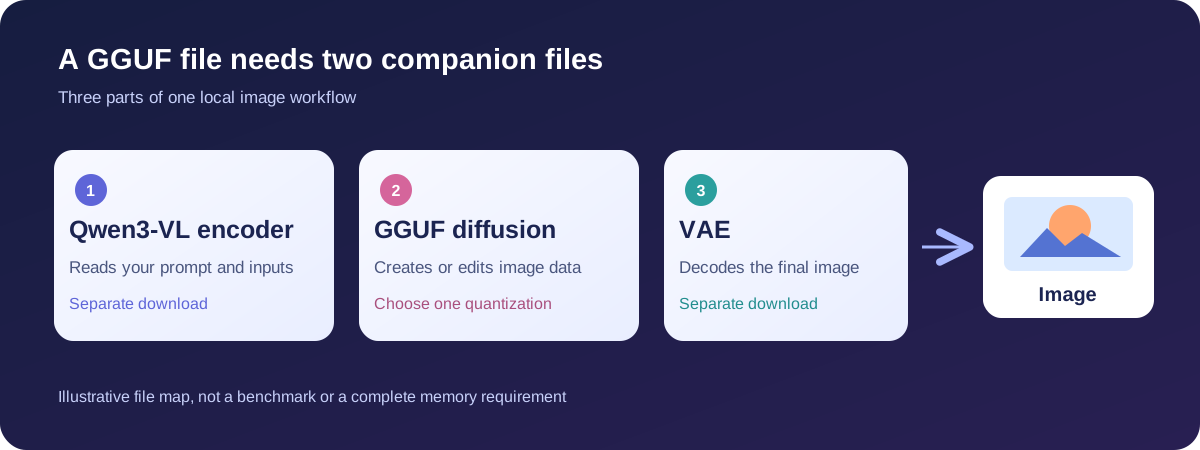
Qwen-Image 2.1 GGUF is a smaller, quantized download of Qwen's image generator for local use. If you want to make images in ComfyUI, download one GGUF diffusion file plus the matching Qwen3-VL text encoder and VAE. The popular “Uncensored GGUF” page is a third-party conversion of Qwen's original weights; its name does not establish a separately trained Qwen model.
If you would rather try the model before downloading large files, open the Qwen-Image 2.1 browser demo. The local route below is for people who want the files on their own machine and are comfortable setting up ComfyUI.
Which Qwen-Image 2.1 GGUF should you download?
Start with the abenzerps GGUF repository if you want its documented ComfyUI layout. As listed on September 23, 2026, its Q4_K_M diffusion file is about 4.60 GB, and the repository recommends it as a balance of size and quality. Q6_K is about 5.88 GB and Q8_0 about 7.59 GB. A larger file uses more storage and memory; it does not guarantee a better result for every prompt.
The Unsloth GGUF repository is another third-party quantization, with its own file sizes and local-use guide. Choose one publisher's workflow first; do not assume that similarly named quantization levels are identical across repositories.
| Download | What it does | First choice in the abenzerps repository |
|---|---|---|
| GGUF diffusion model | Generates or edits the image | qwen-image-2.1-Q4_K_M.gguf or the repo's UC variant |
| Qwen3-VL text encoder | Interprets your prompt and image instructions | qwen3vl_8b_int8_convrot.safetensors for a smaller download |
| Qwen-Image 2.1 VAE | Turns the model's output into an image | qwen_image_2.1_vae_bf16.safetensors |
The GGUF file is only the diffusion model, so downloading its 4.60 GB Q4 file does not mean the whole setup fits in 4.60 GB of VRAM. The same repository lists its Int8 encoder at 9.35 GB and VAE at 676 MB; ComfyUI can offload components, but real memory use also depends on resolution, workflow, and your machine. Unsloth's memory guide gives tested starting configurations for its own files.
For your first download, open the repository's Files and versions tab and select just one diffusion GGUF. You do not need every Q4, Q6, Q8, UC, and non-UC file. Add the listed encoder and VAE, then leave enough disk space for the files and generated images. If a download is interrupted, the abenzerps repository also publishes SHA256SUMS so you can check that the files are complete before troubleshooting ComfyUI.
How much hardware should you plan for?
File size is a useful storage number, not a reliable VRAM requirement. The image size you request, whether the encoder is moved to system RAM, and the software backend all change peak use. Unsloth's current hardware table provides these starting estimates for its own GGUF setup, not measured minimums for every ComfyUI installation:
| Available hardware | Sensible first experiment | What to expect |
|---|---|---|
| 12–16 GB GPU VRAM | Q4_K_M, one 1024×1024 image | A starting point, with offloading if needed |
| CPU only with 12–16 GB RAM | Q4_K_M plus a smaller compatible encoder | Possible in Unsloth's guide, but slower than a suitable GPU |
| Apple Silicon with 12–16 GB or more unified memory | GGUF with a compatible native backend | Unified memory and backend support matter more than a GPU VRAM label |
| 24 GB GPU VRAM | Compare Q4 GGUF with INT8/FP8 | A larger precision format may be worth trying instead of assuming GGUF is best |
If your machine falls below a guide's suggested range, that does not prove it cannot run the model: offloading may make a run possible, often at a speed cost. Likewise, a 4.60 GB diffusion file does not make an 8 GB GPU a guaranteed fit. Start with batch size 1 and a 1024×1024 image, then change one demand at a time. Unsloth explicitly labels its memory figures as estimates and says resolution and offloading affect the result.
How to load the GGUF in ComfyUI
The abenzerps model card documents this route. It uses leejet's ComfyUI-GGUF node for Qwen-Image 2.1 support. Check the current node and workflow instructions before installing, since ComfyUI integration can change.
- Install or update ComfyUI, then install the linked ComfyUI-GGUF custom node and restart ComfyUI.
- Put your chosen
.gguffile inComfyUI/models/diffusion_models/, the Qwen3-VL encoder inComfyUI/models/text_encoders/, and the Qwen-Image 2.1 VAE inComfyUI/models/vae/. - Open the Comfy-Org text-to-image workflow linked from the GGUF repository. Replace its diffusion-model loader with Unet Loader (GGUF) and select your downloaded file.
- In CLIPLoader, choose the Qwen3-VL encoder and set its type to
qwen_image. In VAELoader, choose the Qwen-Image 2.1 VAE. Queue a modest square image first, then raise resolution if it runs comfortably.
For image editing, use the Comfy-Org image-edit workflow linked from the same repository and swap its diffusion loader in the same way. The official Qwen model supports text-to-image, editing, and transparent RGBA output, but the options you see depend on the particular workflow you load.
Make one repeatable first image
Keep the template's model-specific sampler and guidance settings for your first run. Start at 1024×1024, batch size 1. Use a fixed seed if the workflow exposes one, so you can change only the GGUF file or one setting and see what caused a difference. Do not copy a step count or guidance value from a Diffusers or stable-diffusion.cpp recipe into ComfyUI: Unsloth documents different starting recipes by backend.
For a simple creative test, try this prompt in the text-to-image workflow:
A small handmade ceramic mug on a warm kitchen table, soft morning window light, a clean poster composition. Place the exact headline "SLOW MORNING" above the mug. No other readable text.Inspect the headline letter by letter, the mug handle, and the edge of the object. Save the prompt, seed, file variant, and settings with the result. If the first image is weak, change the composition or shorten the visible text before downloading a larger quantization. That separates prompt problems from file-size questions.
To explore native transparency, move to a workflow that supports RGBA output and use Qwen's documented prompt framing: say that it is an RGBA image, that the subject has an alpha channel, and that the background is transparent. After saving, open the file over a contrasting background. A checkerboard preview alone does not prove that the downloaded image kept its alpha channel.
Fix the common setup failures
| What you see | What to check first |
|---|---|
| The GGUF file is missing from the loader menu | Confirm it is in the diffusion-model folder and restart ComfyUI so the model list refreshes. |
| “Unknown model architecture” | Check which ComfyUI-GGUF fork and version you installed. The abenzerps instructions point to leejet's fork for this model. |
| A text encoder or VAE error | Confirm both companion files were downloaded and selected in their own loaders; the GGUF file does not contain them. |
| Out-of-memory during generation | Return to one 1024×1024 image, use the Int8 encoder or offloading, close competing GPU tasks, and try ComfyUI's low-VRAM mode. |
| An expected transparent image saves with a solid background | Verify the workflow and saved file actually support RGBA; do not infer alpha from the preview. |
The abenzerps setup notes recommend keeping the diffusion model on the GPU when possible and offloading the encoder to system RAM. This is a useful speed-oriented arrangement, not a guarantee that every computer will fit the same resolution.
What does “Uncensored GGUF” mean here?
The repository offers both filenames with UC and files without it. Its card says the release has no built-in safety checker and identifies Qwen/Qwen-Image-2.1 as the source of the original upstream weights. It does not document a separate training run or provide a controlled result comparison proving that UC changes the base model's behavior. Treat “uncensored” as this publisher's packaging and behavior claim, and choose a file based on the actual repository notes and your own intended use.
If you want to compare UC with a standard file, keep the prompt, seed, image size, workflow, and encoder the same. A single result can show you a difference in that setup, but it cannot establish that one file is broadly more capable. The name is also separate from the safety rules of any hosted product: downloading a local file does not change what a browser demo or creative service permits.
The official Qwen weights and these GGUF conversions carry the Qwen Research License. The license permits non-commercial research and evaluation by default; commercial use of the model materials requires separate permission from Qwen. A GGUF conversion does not remove that condition.
Should you use GGUF or the browser demo?
Choose GGUF in ComfyUI if local files and workflow control are the point of the experiment, and your computer can accommodate the diffusion model, encoder, and VAE. If you want a simpler local starting point, Unsloth Desktop's guide describes selecting a Qwen-Image 2.1 quantization from an image-model picker and downloading it there; check which creation and editing modes its current release actually exposes. Choose the browser demo on MagicCreator's model page if you first want to see whether Qwen-Image 2.1 suits your image task without local setup. The demo is Qwen's hosted Space embedded on the page, not a MagicCreator-hosted GGUF run.
For a first creative test, ask for a simple transparent sticker or a product image with a short headline. Save the result and inspect its edges or lettering at full size. Those checks tell you more about usefulness for your work than the GGUF filename alone.