
Qwen-Image 2.1 is useful as an open-weight model because its downloadable 7B generator does more than create a finished rectangular image. It can produce transparent RGBA assets, combine as many as 10 references, follow local edit annotations, and handle image generation and editing through one model.
This guide turns those capabilities into five practical workflows for ordinary creators. The examples come from Qwen's official model card, GitHub repository, and interactive Hugging Face demo. They are official demonstrations, not MagicCreator benchmarks.
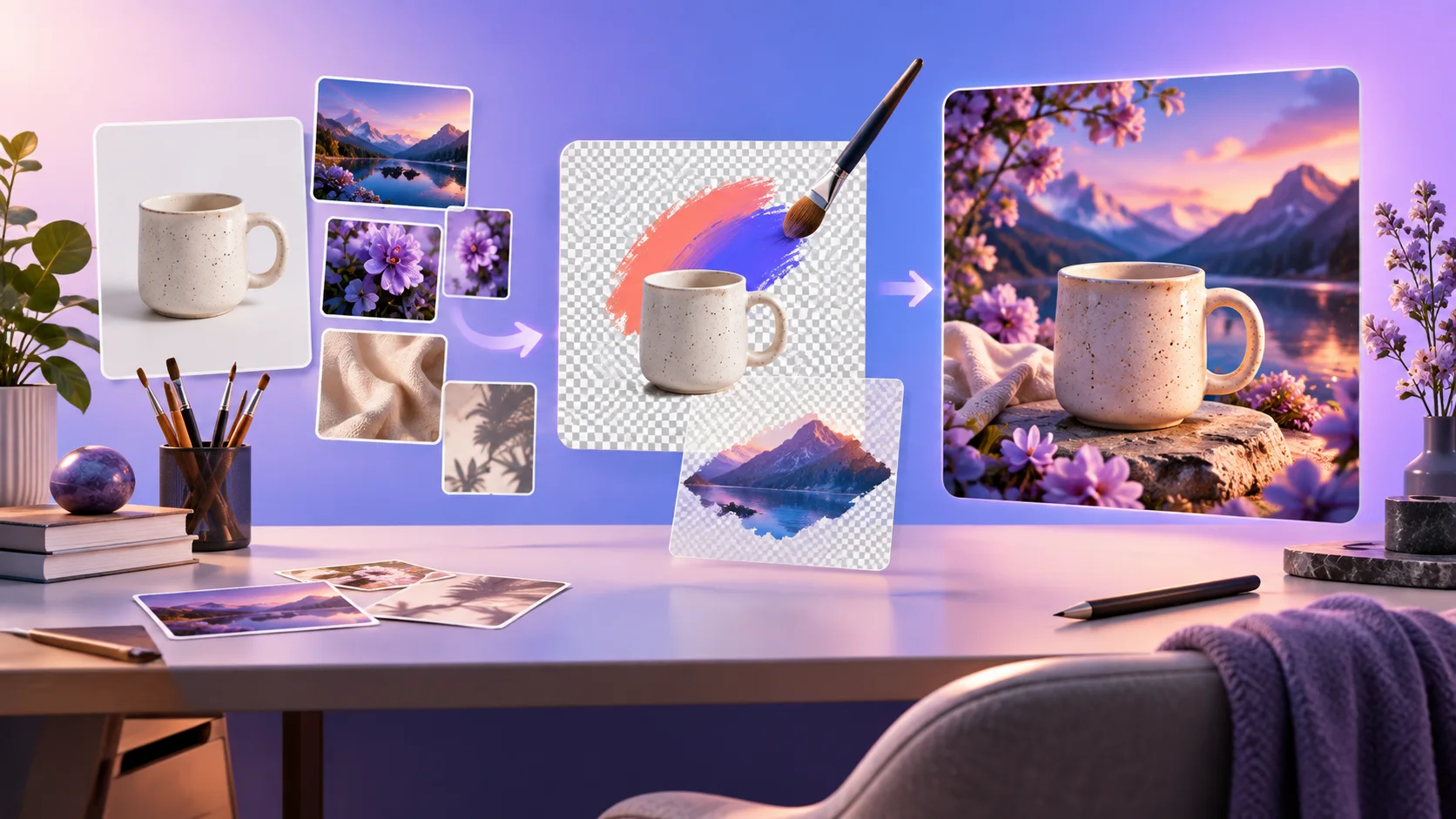
An editorial illustration of an open-weight image workflow. It is not a Qwen-Image 2.1 output or benchmark.
Before you start: open weights are not unrestricted weights
The official weights are available now from Hugging Face and ModelScope. Diffusers and ComfyUI both announced day-one support, so you can use a documented local workflow instead of waiting for a closed product integration.
However, the weights use the Qwen Research License, not Apache 2.0. Non-commercial research and evaluation are permitted by default; commercial use of the model materials requires a separate agreement from Qwen. “Open weight” describes access to the files, not unlimited permission for every use.
If you only want to explore the model before installing anything, open the Qwen-Image 2.1 browser demo. The embedded official Space accepts text prompts and up to 10 input images without using MagicCreator credits.
Workflow 1: create a reusable transparent asset
Native transparency is the clearest reason to test Qwen-Image 2.1 instead of treating it as another text-to-image model. You can ask for an RGBA result with an alpha channel, edit an existing transparent layer, or extract a subject from a regular photo.
Qwen recommends this prompt frame:
This is an RGBA image with transparency. A friendly paper-cut dragon sticker with clean edges and a full-body pose. The image has alpha channel and the background is transparent.Keep the subject fully visible and describe the edge treatment. A “sticker with a clean white outline,” a “soft fabric toy with preserved fuzzy edges,” and a “product cutout with natural contact shadow removed” need different boundaries.
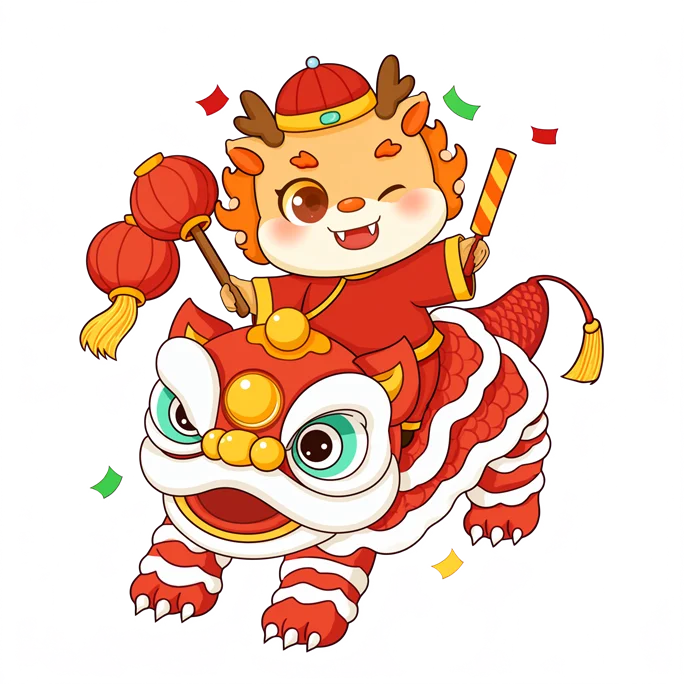
Official Qwen-Image 2.1 transparency example from Qwen's model card. It was not generated by MagicCreator.
Useful outputs include stickers, game pieces, product cutouts, character layers, social graphics, and foreground elements for posters. Verify that the tool you use actually saves RGBA rather than flattening the result onto a colored preview background.
Workflow 2: build one scene from several reference images
The official demo includes examples that combine six portraits into a group, five fashion references into one outfit, and 10 furniture and decor references into one room. The important technique is not simply uploading many pictures. It is assigning a job to every image.
A compact prompt structure is:
Use image 1 as the room and camera view. Use image 2 for the sofa, image 3 for the chair, and image 4 for the lamp. Keep the proportions and recognizable materials of each referenced object. Match all lighting to the room in image 1.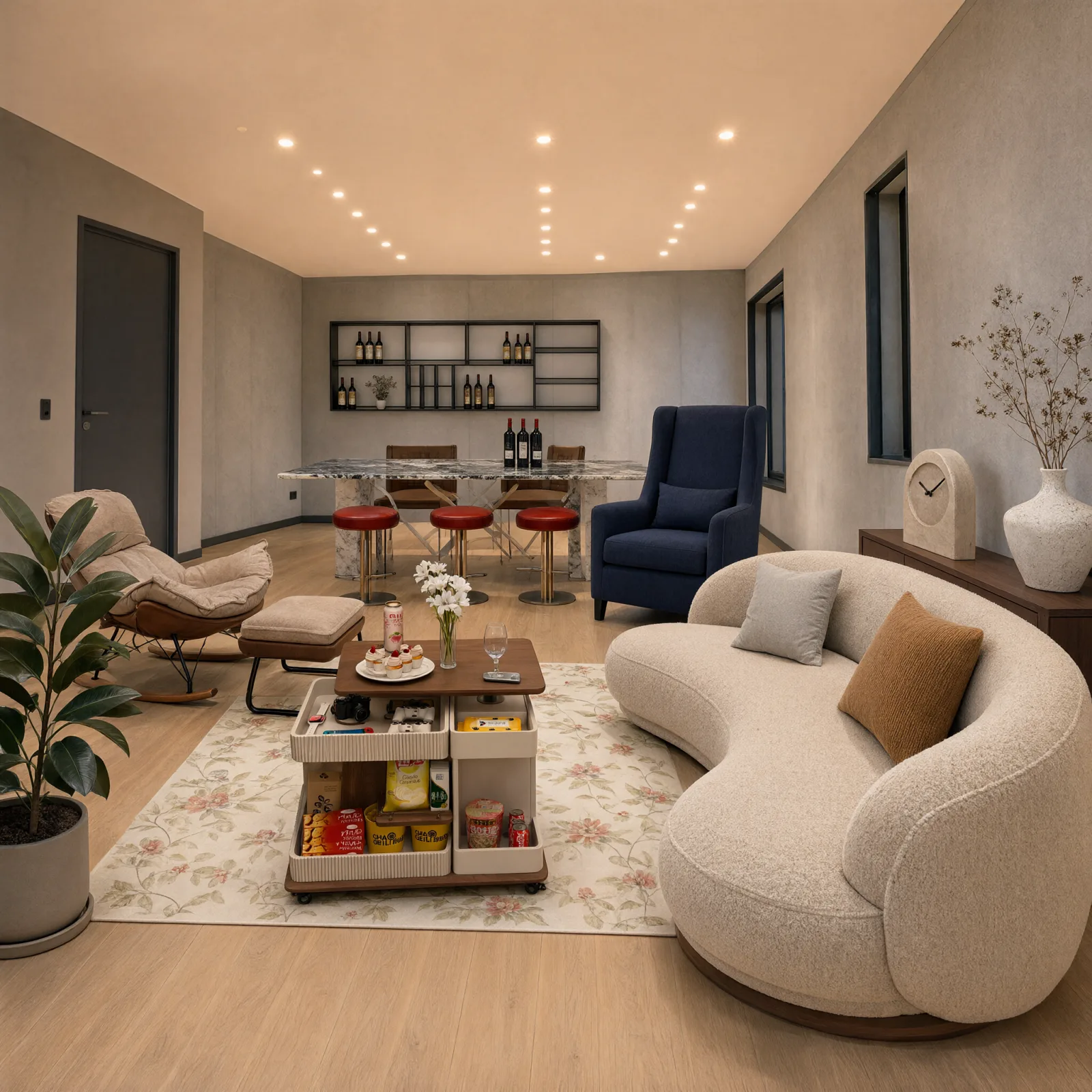
Output from the official Hugging Face Space's “Room furnishing (10 images)” example. Qwen's prompt assigns a specific furnishing or decor role to each reference.
Start with two or three references before attempting 10. Remove images that introduce contradictory camera angles, lighting, or object variants. When identity matters, describe the features that must survive the composition instead of relying on “same product” or “same person” alone.
Workflow 3: make a local edit with a visible annotation
Qwen's official examples demonstrate three local-guidance methods: drawing annotations on the image, supplying a separate mask, and painting over a target region. These are useful when a text instruction such as “change the watch” is too ambiguous.
Use this sequence:
- Mark only the region that may change.
- Name the replacement or correction.
- State what must remain unchanged.
- Compare the result with the original at the edges of the edited area.
For example: “Inside the red circle, replace the silver watch with a narrow brown leather bracelet. Keep the hand, sleeve, skin tone, lighting, and background unchanged.” The preservation sentence matters as much as the requested change.
Local guidance is well suited to product corrections, hair color, clothing changes, unwanted objects, small background repairs, and layout fixes. It is less reliable when the desired edit requires the entire scene's geometry or light direction to change.
Workflow 4: create a poster or visual with short text
The official Space includes travel-planner UI, exam paper, academic infographic, architecture board, typography poster, and storyboard examples. These cases show that Qwen-Image 2.1 is intended to handle structured visual information, not just decorative lettering.
For better results:
- put exact visible copy in quotation marks;
- keep the first version to one headline and one short supporting line;
- describe hierarchy, placement, font character, and contrast;
- ask for no other readable text;
- inspect every letter before publishing.
An effective request is more concrete than “make a coffee poster.” Describe the physical or digital format, the headline, the secondary line, the focal object, the palette, and the intended reading order. Long paragraphs still belong in a layout tool after generation.
Workflow 5: reuse one result across generation, editing, and extraction
The unified model makes a simple iterative workflow possible:
- Generate a complete product or character scene.
- Feed the result back in and correct one weak detail.
- Extract the finished subject as a transparent asset.
- Place that layer into another scene or design.
This is more useful than judging the model from one attractive first image. It tests whether the subject remains recognizable, whether a local instruction stays local, and whether the transparent edge is usable in another composition.
For a small shop, the workflow might begin with a product photo, add a seasonal setting, repair the label area, extract the product, and reuse it in a social post. For a character creator, it can begin with a full-body design, adjust one costume detail, extract the character, and place it into a storyboard.
Which access route should you choose?
| Route | Best for | Main tradeoff |
|---|---|---|
| Official browser demo | Trying examples without installation | Availability and queue limits are controlled by Qwen |
| Local Diffusers or ComfyUI | Private experiments and full workflow control | Large downloads, capable hardware, and setup work |
| Hosted creative product | Faster everyday creation with managed infrastructure | Features, reference limits, price, and license terms vary by provider |
The 7B figure describes the image generator, not the whole local download and runtime footprint. Qwen-Image 2.1 also uses Qwen3-VL 8B as its text and condition-image encoder. Check the current official setup guidance before deciding that “7B” will fit a particular machine.
A practical first test
Try one project that uses the model's connected workflow instead of five unrelated prompts:
- upload a product or character reference and a setting reference;
- compose them into one scene;
- mark one object for a focused edit;
- extract the main subject as a transparent layer;
- verify identity, text, edges, and preservation of untouched areas.
That test reveals more about Qwen-Image 2.1 than a generic landscape prompt. For the full specification, access links, and license explanation, read the Qwen-Image 2.1 guide, or open the official demo on the model page.
FAQ
Are Qwen-Image 2.1 weights really available?
Yes. Qwen published the weights on Hugging Face and ModelScope and released the implementation on GitHub on September 20, 2026.
Can I use the open weights commercially?
Not under the default research terms. The Qwen Research License permits non-commercial research and evaluation; commercial use requires a separate license from Qwen.
Does the official demo support image editing?
Yes. It accepts one to 10 input images for editing or composition. The example library includes multi-reference scenes, portraits, outfits, room furnishing, masks, painted regions, and annotation-guided edits.
Does a transparent preview prove the downloaded file has alpha?
No. Some interfaces display transparency over a colored or checkerboard preview. Inspect the downloaded file's color mode or open it over another background to confirm that the alpha channel was preserved.