
GPT Image 2.5 can help you make stop-motion-style videos by creating a sequence of still frames with small controlled changes. It does not generate the finished video by itself. You create an anchor image, make the next pose one frame at a time, download the approved frames, and assemble them in a familiar video editor at about 8–12 frames per second.
The key is restraint. Keep the character, camera, set, lighting, and style locked. Change only one small piece of motion in each new frame. A two- or three-second clip is a much better first project than a full scene.
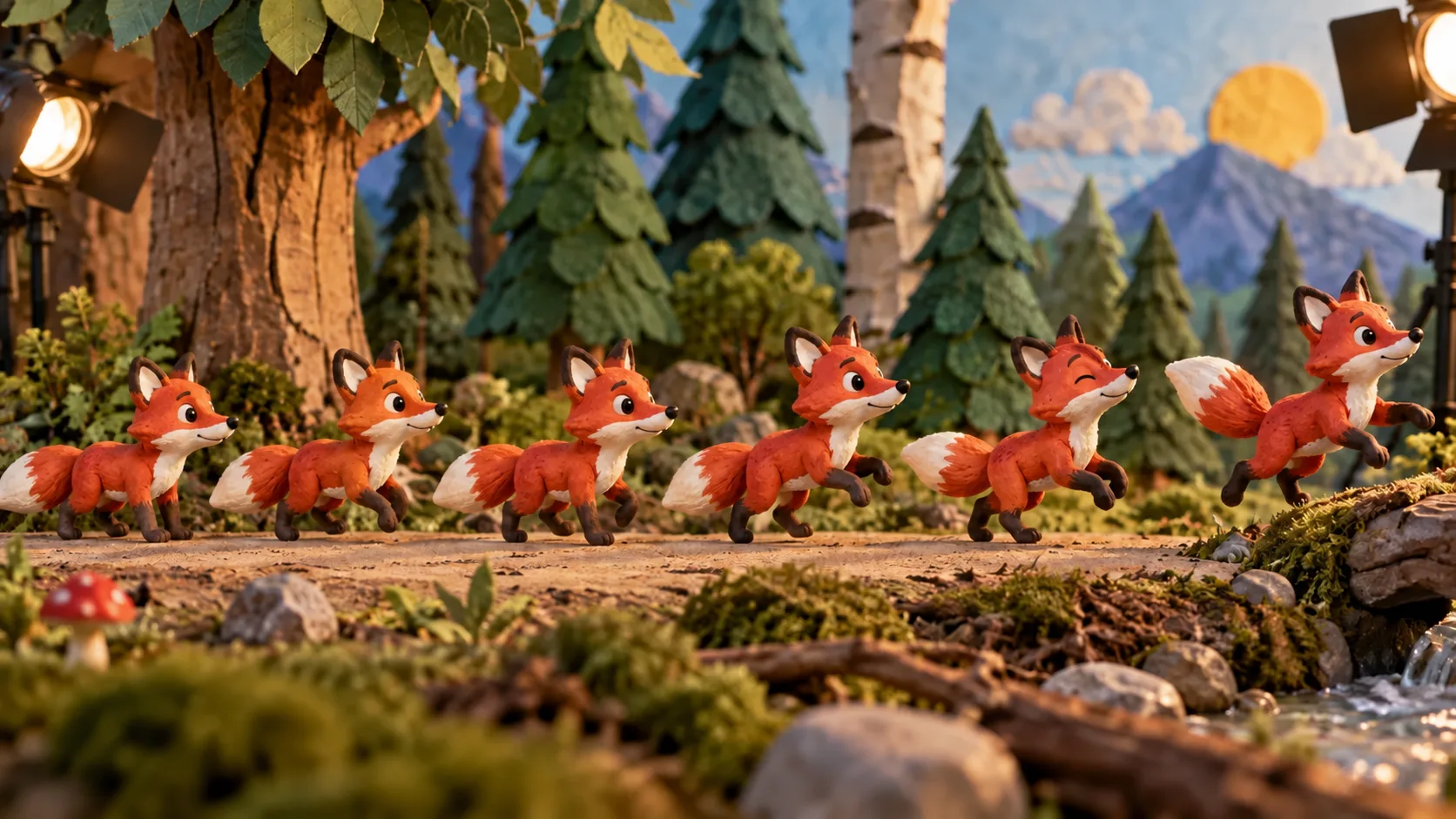
Editorial artwork illustrating incremental stop-motion poses. It is not a GPT Image 2.5 output or consistency benchmark.
What you need before starting
For a simple clip, prepare:
- one character or object that is easy to recognize;
- one fixed setting and camera angle;
- a short action that can be divided into 12–24 poses;
- GPT Image 2.5 for creating and editing the frames;
- a phone or desktop video editor that can display still images quickly;
- optional music or sound effects after the visuals work.
Good first actions include a clay animal taking three steps, a toy car crossing a desk, a paper flower opening, or a small object rotating. Avoid dialogue, crowds, costume changes, complex camera movement, and several characters interacting in your first test. Every additional moving detail creates another opportunity for visual drift.
Choose Flare or Sunburst for stop motion
Both GPT Image 2.5 models generate and edit images, accept reference images, and support the same quality controls. They play different roles in a frame-by-frame workflow.
| Model | Use it when | Practical tradeoff |
|---|---|---|
| Flare | Exploring the idea, testing poses, or producing many quick drafts | Faster iteration; inspect identity and set details carefully |
| Sunburst | A final sequence needs tighter character, product, or edit precision | Slower; stronger starting choice when small unwanted changes ruin continuity |
Start with Flare at medium quality to prove that the action reads. If the face, object shape, outfit, or background changes too much, repeat the same test with Sunburst at high quality. Do not change model, prompt, reference, camera, and quality all at once or you will not know what fixed the problem.
See the full Sunburst vs Flare comparison if you need help choosing. The GPT Image 2.5 generator exposes both models directly.
Step 1: plan a two-second action
Write one sentence describing the whole clip, then divide it into visible poses. For example:
A small clay fox sits, notices a butterfly, stands up, takes two steps, and looks upward.
At 8 frames per second, a two-second clip needs 16 frames. You do not need 16 completely different compositions. Several frames can use tiny changes in the head, ears, paws, tail, or body position.
A simple motion plan could be:
| Frames | Change |
|---|---|
| 1–3 | Sitting still, then ears begin to rise |
| 4–6 | Head turns slightly toward the butterfly |
| 7–9 | Front body lifts from the ground |
| 10–13 | Two short walking poses |
| 14–16 | Fox stops and looks upward |
This plan prevents the image model from inventing the story while it is also trying to preserve the visuals.
Step 2: create a strong anchor frame
The first frame is your visual contract for the entire sequence. Make the character distinctive without making it complicated. Lock these details:
- body proportions and silhouette;
- face, eye shape, and expression range;
- colors, materials, and clothing;
- camera height, distance, and lens feel;
- background objects and their positions;
- lighting direction and shadow softness;
- aspect ratio and image style.
Use a prompt like this for the anchor:
A small handmade clay fox sitting on a miniature forest path. The fox has a rounded head, large triangular ears with dark tips, a white muzzle and chest, four short dark-brown paws, and one orange tail with a white tip. Fixed eye-level camera, medium-wide framing, warm light from the upper left, soft shadow to the right. Tactile stop-motion clay style with visible handmade texture. No text, no logo, no watermark.Generate a few candidates, choose one, and stop redesigning it. Save the approved image as your master reference. The most attractive option is not always the best anchor; choose the one with a clear silhouette, simple background, and details that will be easy to inspect in every frame.
Step 3: generate only the next frame
Upload the approved frame in image-to-image mode. Ask for the next smallest movement rather than describing the whole scene again.
Use this structure:
Use the uploaded image as the exact visual anchor for the next stop-motion frame. Change only this action: move the fox's front-right paw slightly forward and shift its body a very small distance in the same direction. Preserve the exact fox design, face, proportions, colors, clay texture, tail shape, set, camera angle, framing, lighting, shadows, and background objects. Do not add or remove anything. No text, no logo, no watermark.After each approved result, you have two choices:
- Use the newest frame as the input when the motion depends on the previous pose.
- Return to the clean master frame when details have started drifting, then describe the desired pose more explicitly.
The first method produces smoother incremental motion. The second prevents small errors from multiplying. Keep both the master frame and the latest approved frame available.
Step 4: inspect every frame before continuing
Do not create all 24 frames and review them at the end. A changed ear in frame 5 can become a completely different character by frame 15.
Check each result in this order:
| Check | What must stay stable |
|---|---|
| Character | Face, eye shape, colors, proportions, material, accessories |
| Set | Tree, furniture, rocks, horizon, wall lines, and object count |
| Camera | Crop, height, angle, focal length, and subject scale |
| Lighting | Direction, color, shadow length, and reflections |
| Motion | The requested body part changes by a small believable amount |
| Cleanliness | No new text, marks, extra limbs, duplicate props, or damaged edges |
Reject the frame immediately if an important locked detail changes. Asking the next frame to repair several accumulated errors usually makes continuity worse.
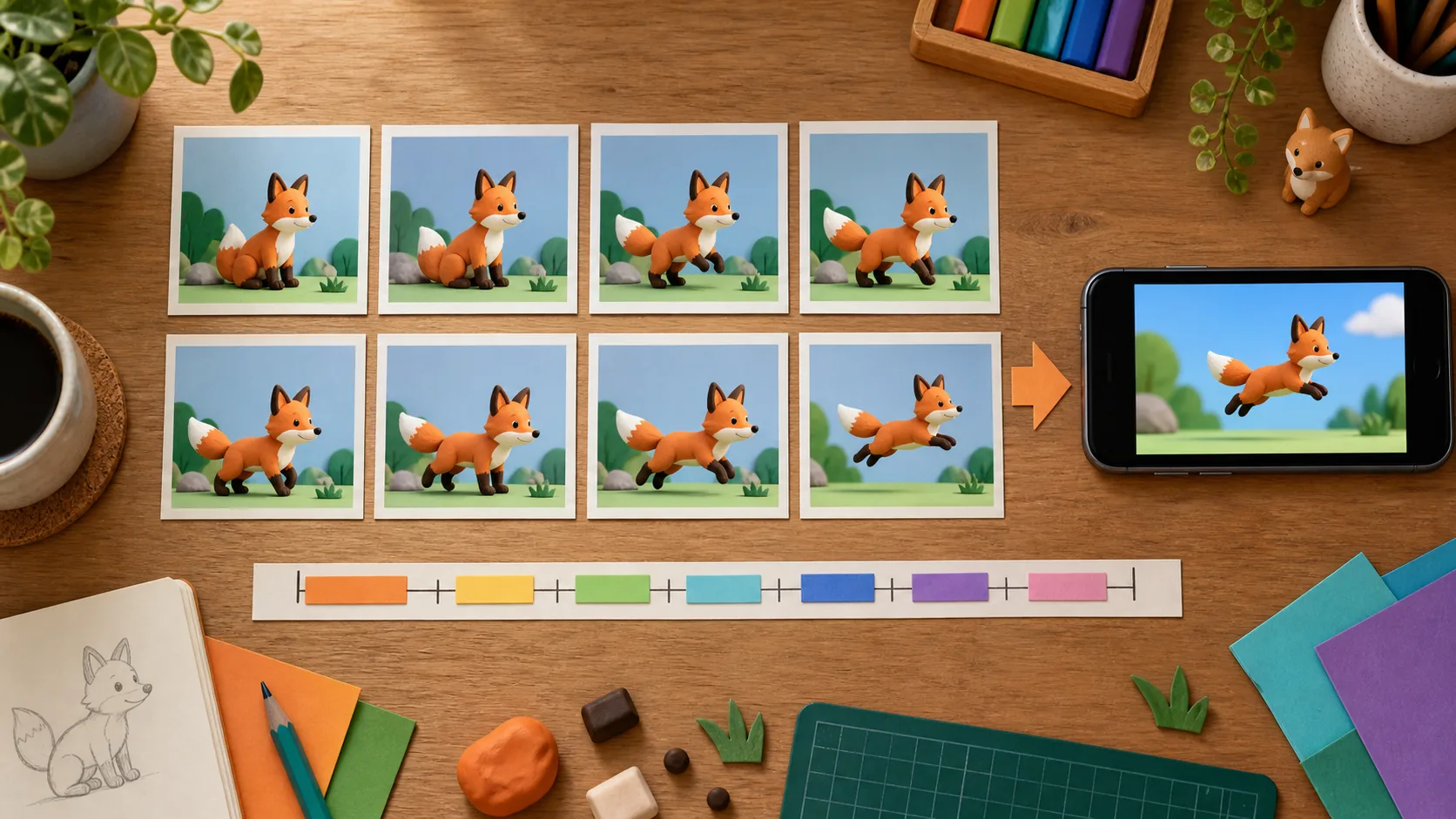
A practical workflow moves from approved still frames to a short timeline. This is an editorial illustration, not a software screenshot or GPT Image 2.5 test.
Step 5: assemble the frames into a video
Download the approved frames in order and give them sortable names such as fox-001, fox-002, and fox-003. Import them into CapCut, iMovie, Canva, Adobe Express, or another editor that lets you control still-image duration.
For a stop-motion feel:
- Put the images on the timeline in numerical order.
- Start at 8 frames per second, so each image lasts about 0.125 seconds.
- Try 10 or 12 frames per second if the movement feels too jerky.
- Duplicate a frame when the character should pause.
- Remove or replace a frame if it creates a visible jump.
- Export a short preview before adding titles, transitions, or sound.
Do not add crossfades between every still. Traditional stop motion gets much of its character from discrete poses. A short dissolve can also reveal shape changes that were less obvious when frames cut directly.
Once the motion works, add a simple sound effect, music beat, or ambient track. Time the sound to the action rather than changing the frame sequence to fit a complicated soundtrack.
How much will the frames cost?
On MagicCreator, GPT Image 2.5 currently costs 2 credits at medium quality and 6 credits at high quality. A 16-frame sequence therefore starts at:
- 32 credits for 16 successful medium-quality frames;
- 96 credits for 16 successful high-quality frames.
That is the clean minimum. Successful frames you reject and regenerate also consume credits, while failed generations do not. The safest budget is to prove the action with 4–6 medium-quality frames before committing to the complete sequence.
Read the GPT Image 2.5 pricing guide for every quality tier and the current dollar equivalents.
Common stop-motion problems and fixes
The character slowly changes
Return to the master reference instead of continuing from the damaged frame. Restate the exact face, proportions, colors, outfit, and material. Change one pose only.
The background moves between frames
Explicitly lock the camera, crop, background objects, lighting, and shadows. Use a simpler set if the model keeps rearranging small props. A plain backdrop is easier than a room full of objects.
The motion jumps too far
Create an in-between pose. Describe the body part and distance precisely: “raise the paw slightly” is safer than “start running.” Smaller changes generally produce smoother motion and fewer redesigned details.
Later frames look softer or dirtier
Repeated image-to-image editing can gradually alter texture and fine detail. OpenAI's own prompting guide warns that repeated edits may change details you meant to preserve. Return to the clean anchor periodically and compare every new frame at full size.
The sequence looks smooth but not like stop motion
Reduce the frame rate, hold key poses for two frames, and keep some handmade texture. Perfectly fluid motion can feel like ordinary animation. Slightly stepped timing helps sell the stop-motion style.
The model adds duplicate limbs or props
Reject the result rather than trying to hide the error in a fast cut. Specify the exact number of visible limbs or objects when the pose is difficult, and keep the character away from cluttered foreground elements.
A faster workflow for longer clips
Once a two-second test works, make longer scenes as separate shots rather than one uninterrupted generation chain.
- Build each shot around its own clean anchor.
- Keep one action and one camera angle per shot.
- Reuse the same character reference across shots.
- Finish and export one shot before starting the next.
- Join the shots in the editor with a simple cut.
This limits how far visual errors can travel. It also lets you use Flare for easy shots and Sunburst only for close-ups or precision-sensitive frames.
An early community example showed 36 GPT Image 2.5 stills stitched together without a video model. That demonstrates the basic approach, but it does not guarantee every subject will remain equally stable. Simple characters, controlled sets, and small movements still give you the best chance of success.
Frequently asked questions
Can GPT Image 2.5 generate a stop-motion video directly?
No. GPT Image 2.5 generates and edits still images. You create a sequence of frames, then assemble them in a video editor or GIF maker.
How many frames should a beginner make?
Start with 12–24 frames. At 8 frames per second, 16 frames make a two-second clip. This is long enough to test continuity without turning one experiment into a large project.
Should I use Flare or Sunburst?
Start with Flare for quick pose tests. Try Sunburst when character identity, product geometry, fine texture, or precise edits keep drifting. Use the least expensive setting that passes your visual checks.
Should every new frame use the previous frame as input?
Use the previous frame while the sequence remains clean. Return to the master reference when errors begin to accumulate. Keeping both references is more reliable than following one long editing chain at all costs.
What frame rate looks like stop motion?
Eight to twelve frames per second is a practical starting range. Use fewer frames for a deliberately choppy handmade feel and more frames for smoother motion.
Can I use the method for people or products?
Yes, but inspect identity, hands, labels, product geometry, and reflections more carefully. Begin with a simple action and fixed camera. Sunburst is the stronger first test when exact details matter.
Sources and update notes
Workflow checked September 9, 2026. The tutorial reflects the current GPT Image 2.5 generation and editing capabilities available in MagicCreator. The fox visuals are original editorial illustrations and are not presented as model outputs.
- OpenAI image prompting guide — model selection, editing constraints, repeated-edit limitations, and iteration guidance.
- Introducing ChatGPT Images 2.5 — official release, subject preservation, editing, and consistency positioning.
- Charlie Guo's stop-motion example — early public example of GPT Image 2.5 frames used for stop motion.
- Ivana's 36-frame example — community example describing 36 still images stitched without a video model.